How to Connect Xero to Trophy Jar
If you’re running your billing through Xero, every paid invoice is a moment where a customer just had a positive interaction with your business. Most of that goes to waste because nothing follows up. Trophy Jar connects directly to Xero and automatically sends a review request when an invoice reaches the status you care about.
Here’s how to get it set up.
Step 1: Create a Xero app
Go to Xero’s developer page and click New App. Fill in the required fields. This is just Xero’s way of authorizing the connection.
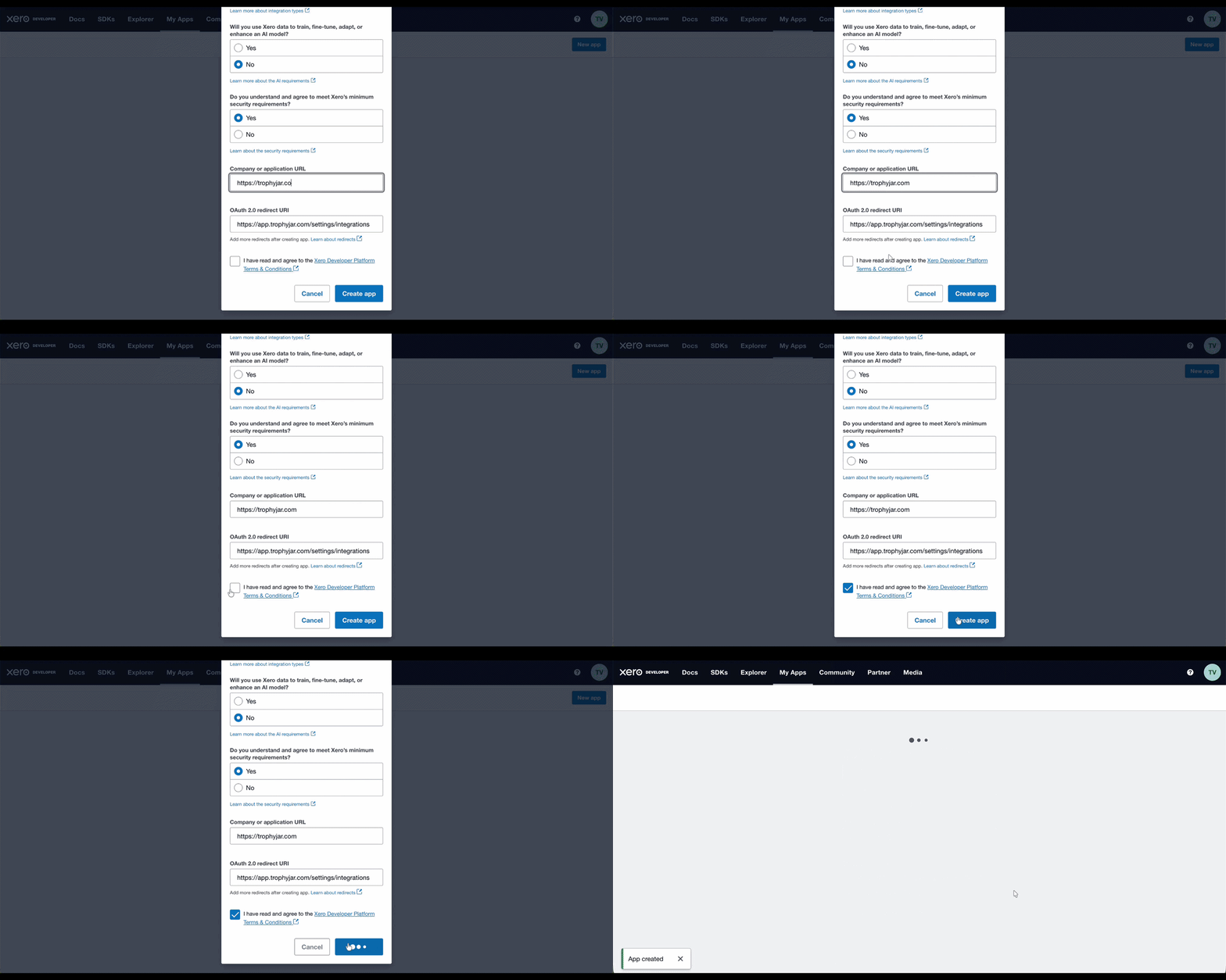
Step 2: Set your redirect URI
In your new Xero app, find the Redirect URI field. Paste in the exact URI shown on the Trophy Jar Integrations page. It needs to match precisely.
Step 3: Connect your credentials
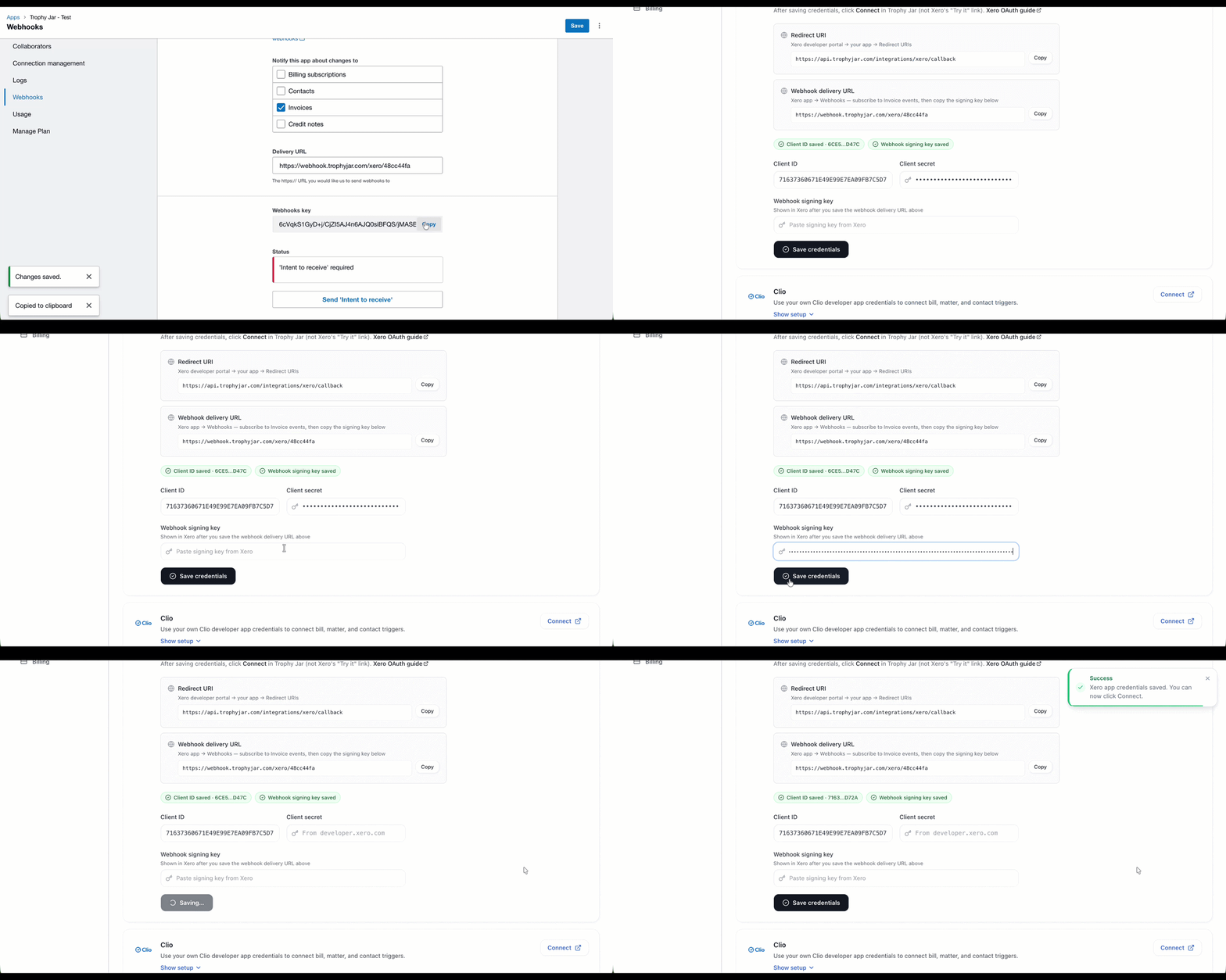
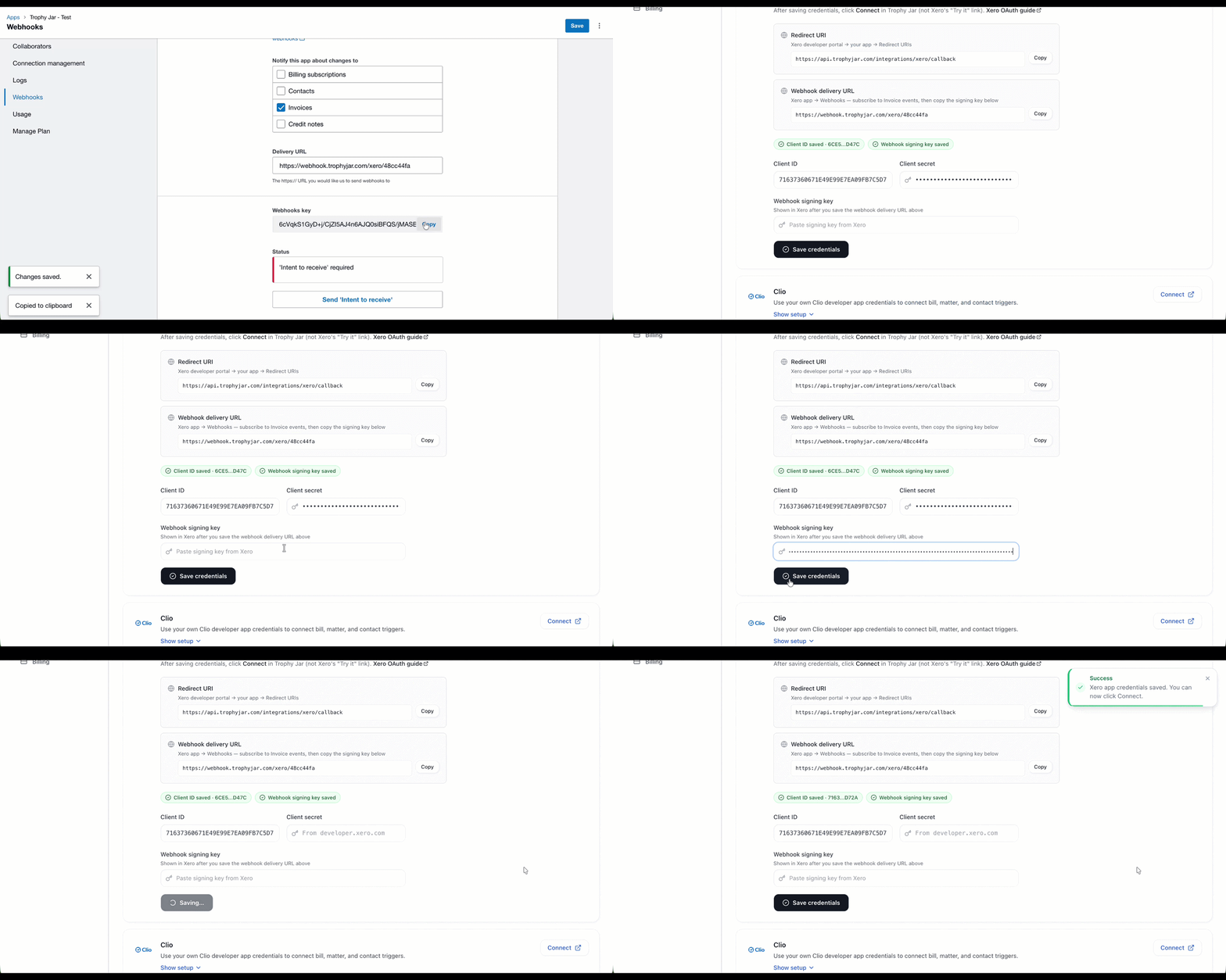
In Xero, go to Configurations and copy your Client ID. Paste it into the matching field on the Trophy Jar Integrations page.
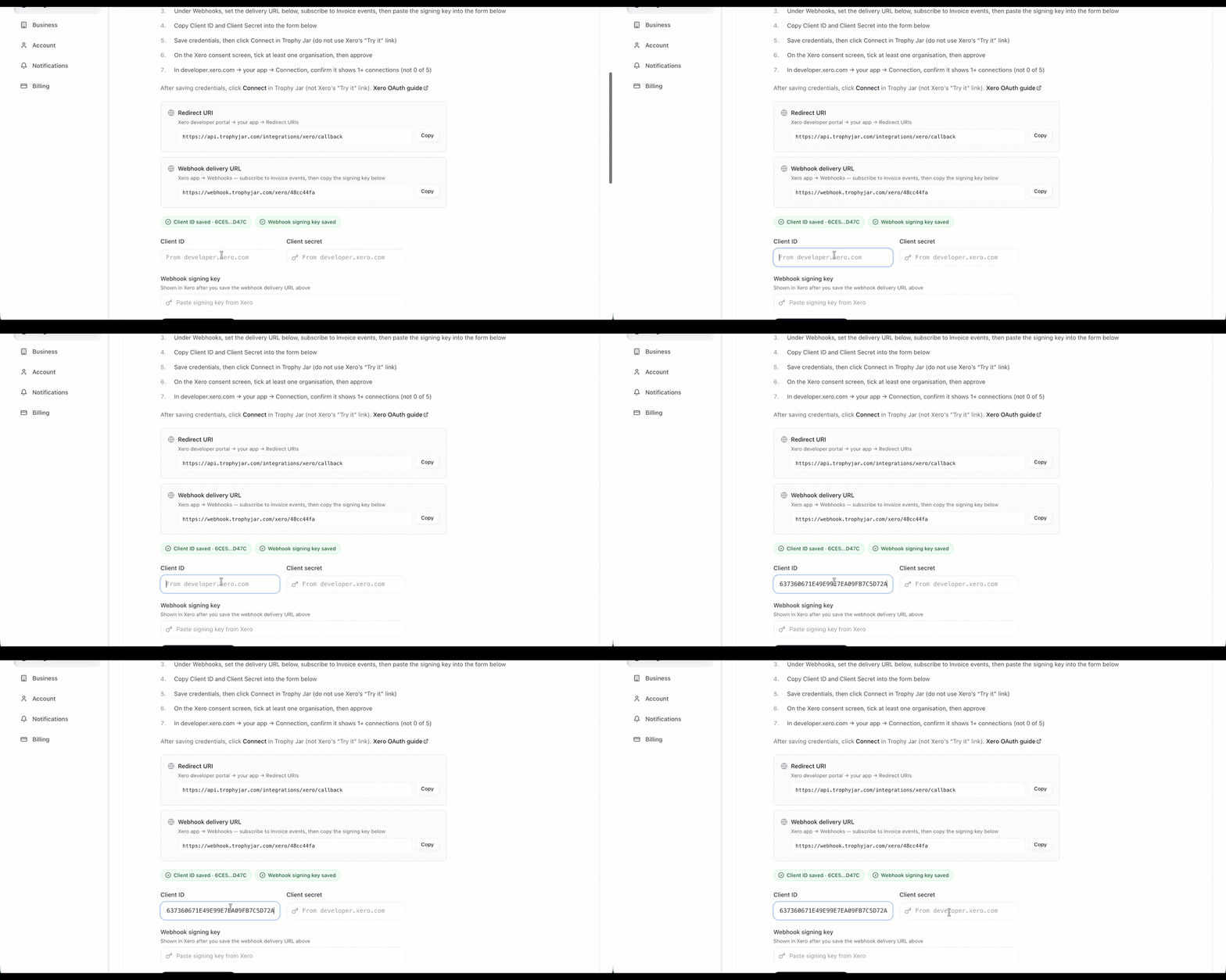
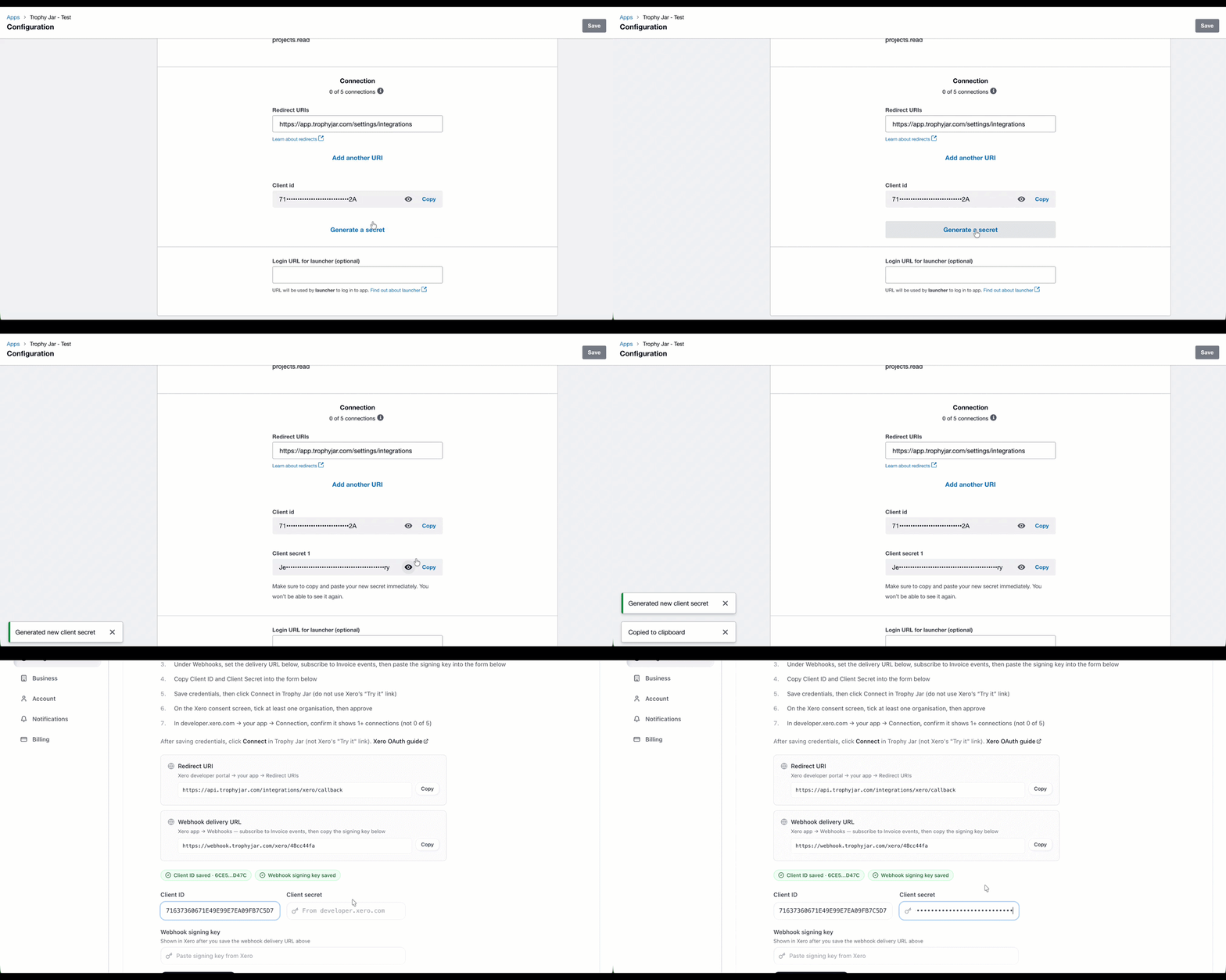
Then go back to Xero, hit Generate Secret, copy the Client Secret, and paste that in too.
Step 4: Set up the webhook
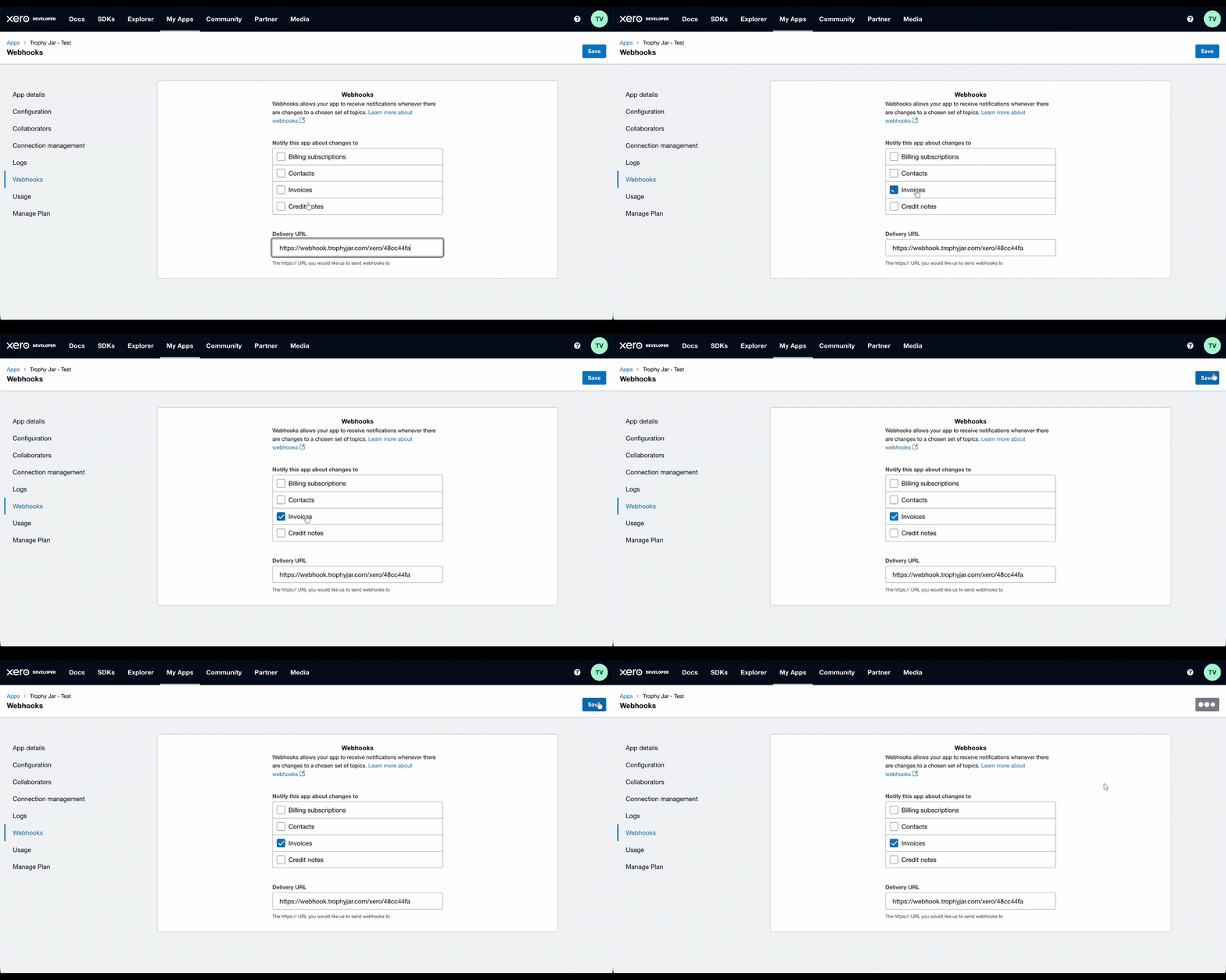
Copy the Webhook Delivery URL from Trophy Jar’s Integrations page. Back in Xero, go to Webhooks, tick the box for Invoice events, paste the URL in, and click Save.
Step 5: Paste the webhook key back into Trophy Jar
After saving, Xero generates a Webhooks Key. Copy it and paste it into the corresponding field in Trophy Jar. Then click Save Credentials.
Step 6: Authorize access
Xero will show you a consent screen listing your organizations. Tick at least one, then click Allow Access. This permits Trophy Jar to receive invoice events from that organization.
Step 7: Configure your trigger
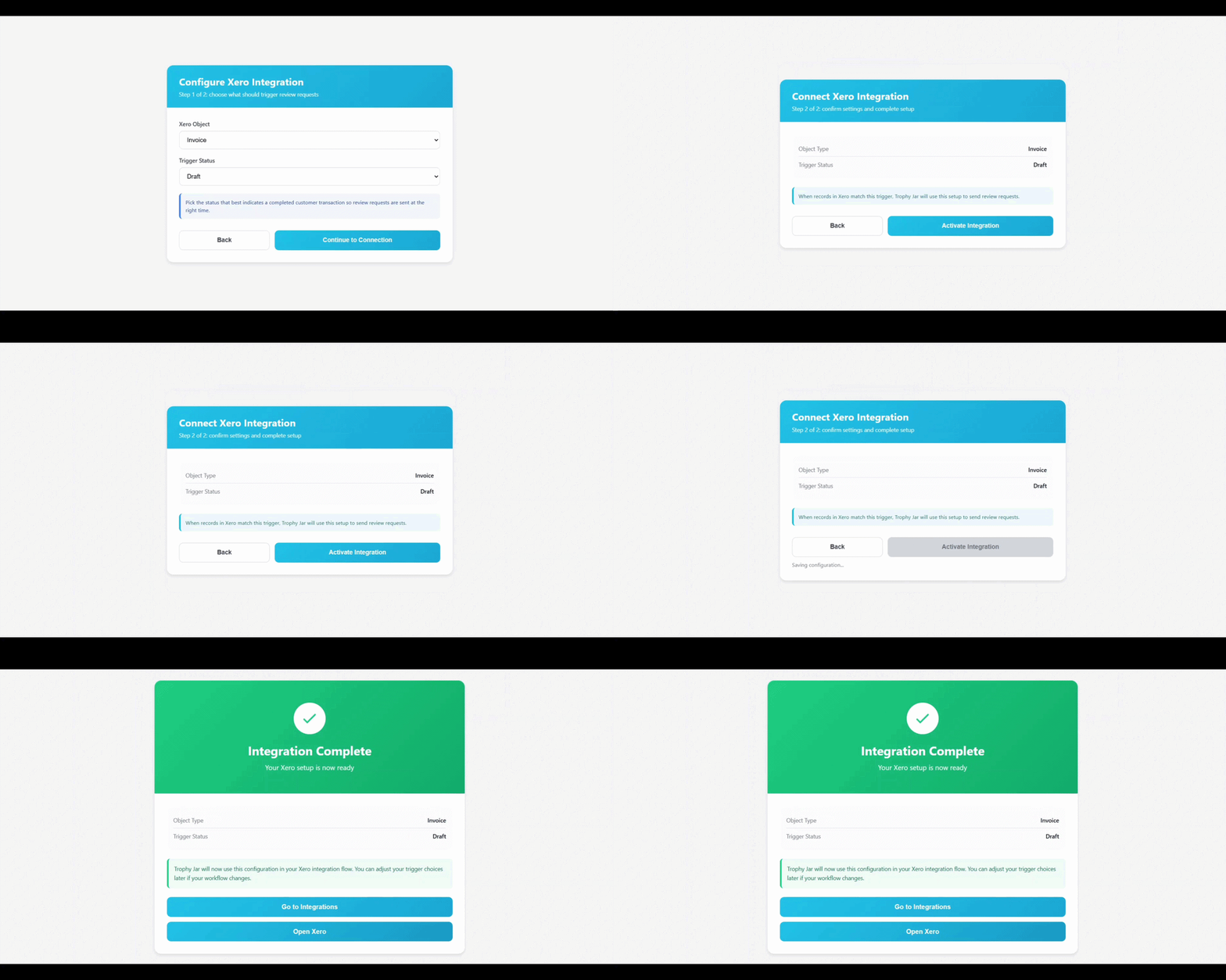
Almost done. In Trophy Jar, set the Xero object to Invoice and choose the Trigger Status. The invoice status that should kick off a review request. Paid is the obvious one. Once you’ve set it, click Activate Integration.
What happens after that
Nothing changes in how you use Xero. Invoices go out as normal. When one hits your configured status, Trophy Jar picks up the event and sends the review request automatically. No manual follow-up, no reminders, no checking anything.
While you are here, how do your reviews compare?
Type your business name and see where you rank against your competitors. Free, no signup.
Trophy Jar asks every customer for a review automatically, from $9 a month.Start now
Before you go live
Run a test invoice through first. Push it to the trigger status and confirm the review request email actually arrives. It takes two minutes and saves you from finding out something’s misconfigured after real customers have gone through the flow.
Also double-check you’ve ticked the right Xero organization on the consent screen. If you manage multiple, it’s easy to authorize the wrong one.
Keep going: see get more reviews on autopilot.