How to Connect QuickBooks to Trophy Jar
QuickBooks knows the second a client pays. That’s the moment they’re happiest, when the work is done, the invoice is settled, everything’s fine. Most businesses let that moment disappear. The payment clears, life moves on, and nobody ever asks for a review.
Trophy Jar sits between QuickBooks and your customers and makes sure that ask actually happens.
What it does
When a payment, invoice, or billing event fires in QuickBooks, Trophy Jar catches it and automatically sends a review request to that customer. You pick which events matter. Everything after that runs on its own.
While you are here, how do your reviews compare?
Type your business name and see where you rank against your competitors. Free, no signup.
Trophy Jar asks every customer for a review automatically, from $9 a month.Start now
Setting it up
Step 1: Create a QuickBooks app
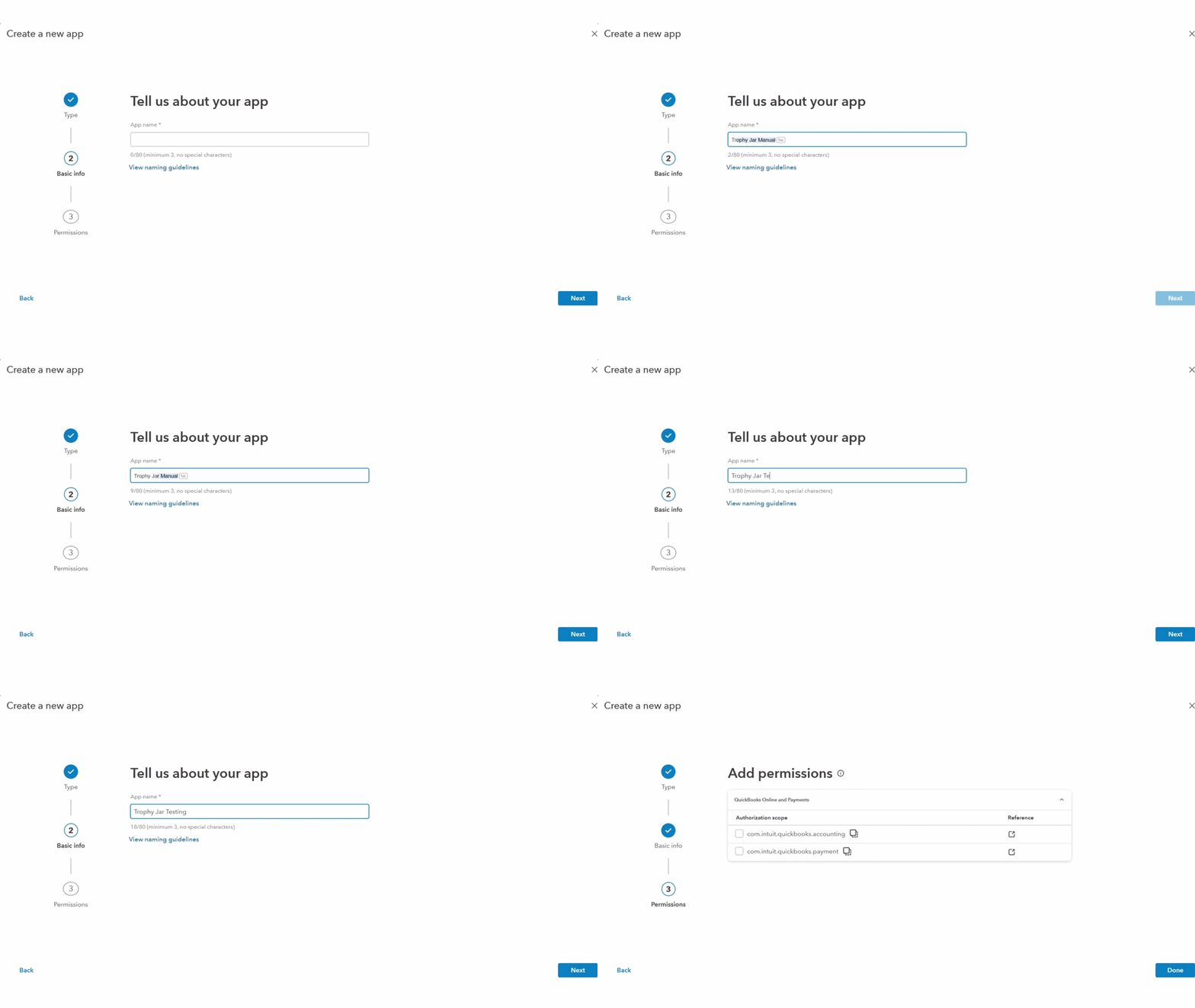
Go to developer.intuit.com/app/developer/dashboard and create a new app. This is how Intuit authorizes Trophy Jar to connect to your QuickBooks account.
Step 2: Add your redirect URI
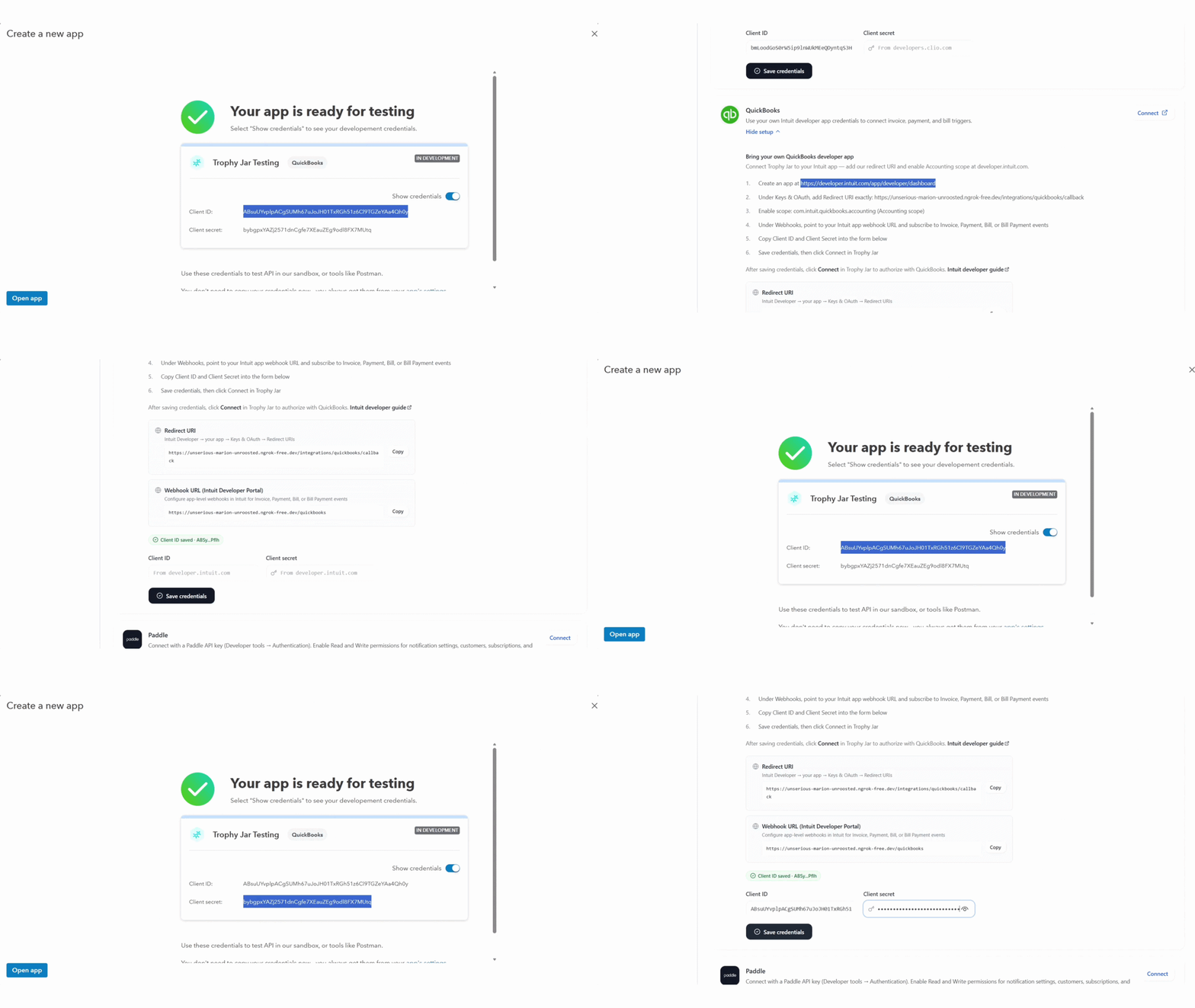
Under Keys & OAuth, find the Redirect URI field and paste in the exact URI shown on your Trophy Jar integrations page. One wrong character breaks the authorization. Copy it directly from Trophy Jar.
Step 3: Enable the accounting scope
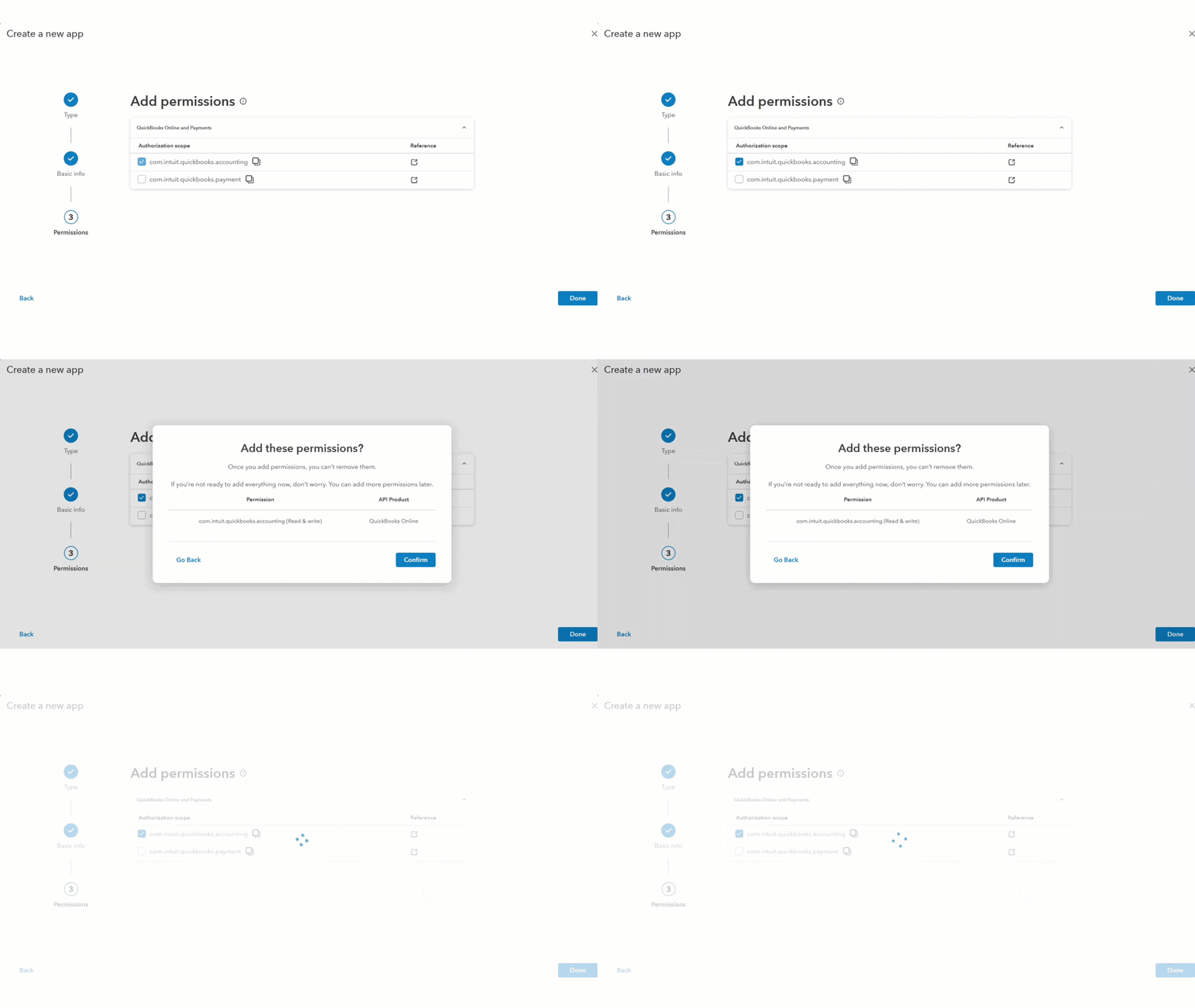
Add com.intuit.quickbooks.accounting as a scope. This gives Trophy Jar the access it needs to detect billing events on your account.
Step 4: Configure your webhooks
Under Webhooks, paste in your Trophy Jar webhook URL and subscribe to the events that make sense for your business, such as the Invoice, Payment, Bill, or Bill Payment.
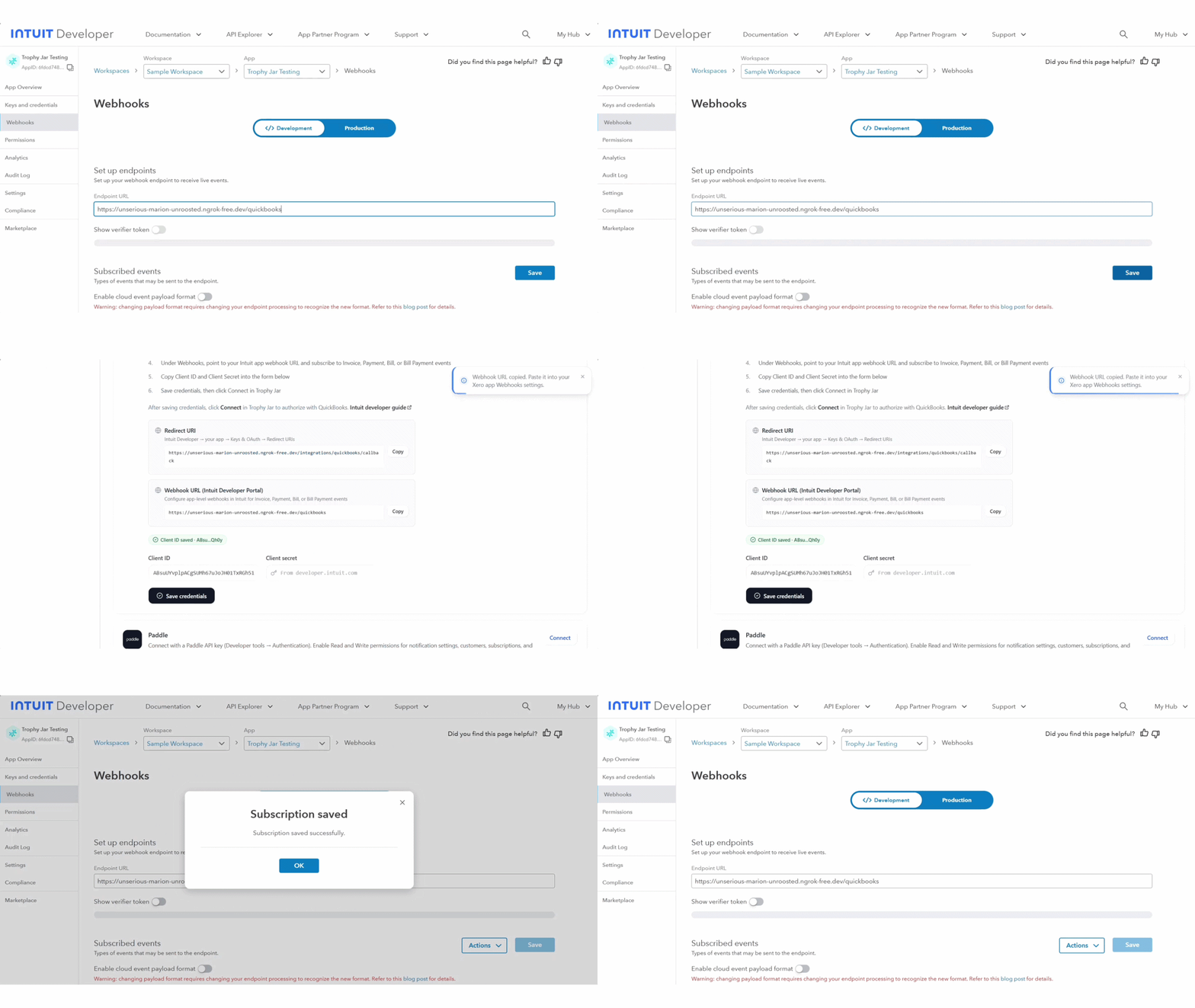
A quick note on this: Bill and Bill Payment are vendor-side transactions. If your goal is to collect reviews from customers, stick with Invoice and Payment. Those are the ones that signal a customer just completed something with you.
Step 5: Copy your credentials into Trophy Jar
Back in your Intuit app, grab the Client ID and Client Secret. Paste both into the matching fields on the Trophy Jar integrations page.
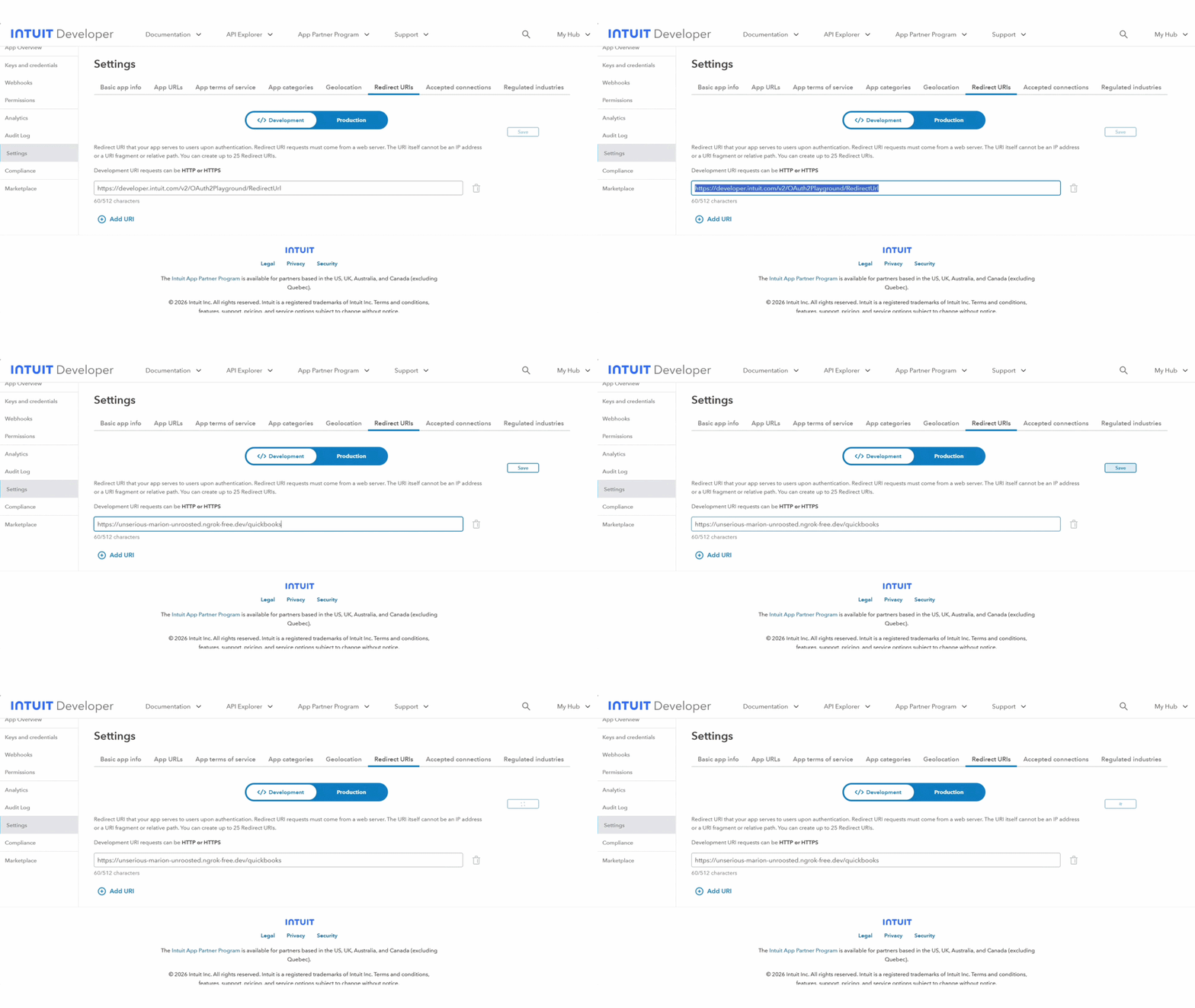
Step 6: Save credentials, then connect
Click Connect to launch the QuickBooks authorization screen. Approve access and you’re live.
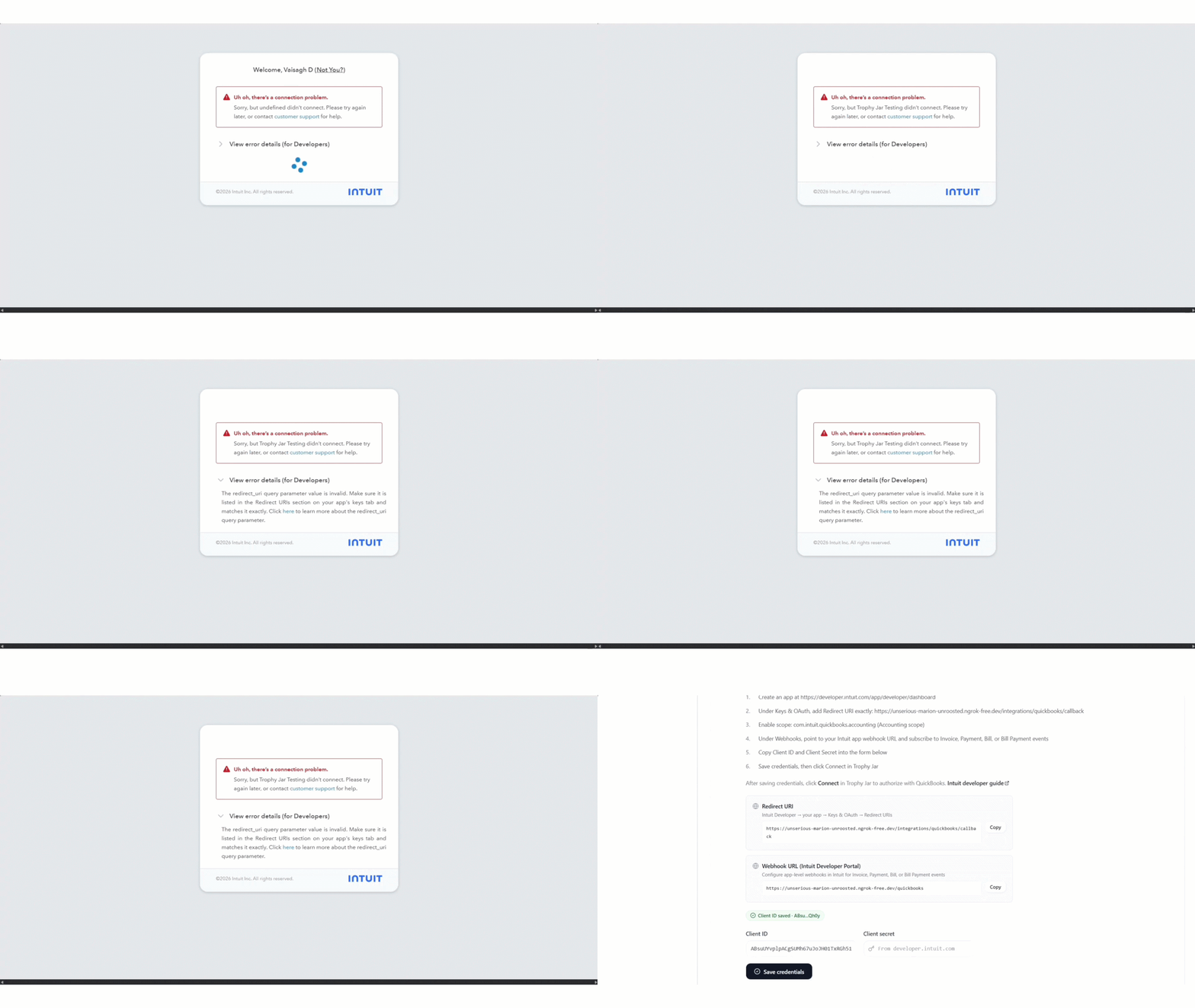
Day-to-day
Nothing changes in how you use QuickBooks. Send invoices, collect payments, run your business. When a transaction matches a subscribed event, Trophy Jar picks it up and sends the review request automatically.
Reviews collect in your Trophy Jar dashboard and publish to your site through widgets, like carousels, featured testimonials, Wall of Love, badges. Nobody has to manage any of it.
Before you go live
Test it first. Run a transaction through with test credentials and confirm the review request actually lands in an inbox before switching to live mode. Also worth checking you’ve subscribed to the right events. A misconfigured webhook either fires constantly at the wrong moments or doesn’t fire at all.
Keep going: see get more reviews on autopilot.