How to Connect HubSpot with Trophy Jar
Most follow-up emails don’t get sent. Not because anyone decided not to send them, but because no one had time, the right moment passed, or the project had already moved stages, and you just forgot. That’s the gap Trophy Jar plugs into HubSpot.
Here’s how to get it set up.
What the HubSpot Integration Does
Trophy Jar watches for stage changes and object events in HubSpot. When a record hits a stage you’ve configured, HubSpot fires a webhook to Trophy Jar, and Trophy Jar sends the right review request email automatically. No manual triggers. No checking pipelines.
While you are here, how do your reviews compare?
Type your business name and see where you rank against your competitors. Free, no signup.
Trophy Jar asks every customer for a review automatically, from $9 a month.Start now
How to Install HubSpot with Trophy Jar
Step 1: Install the Trophy Jar App from HubSpot
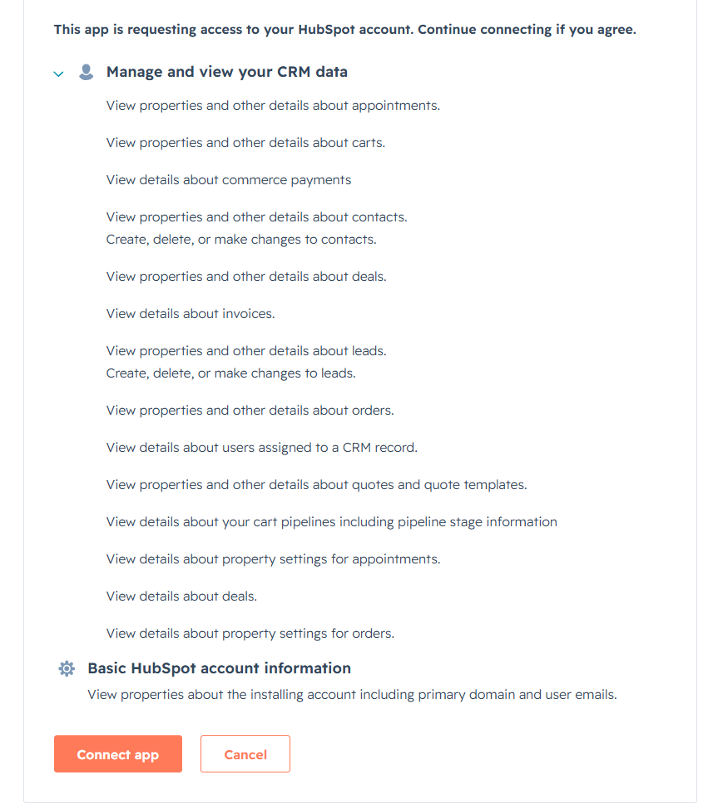
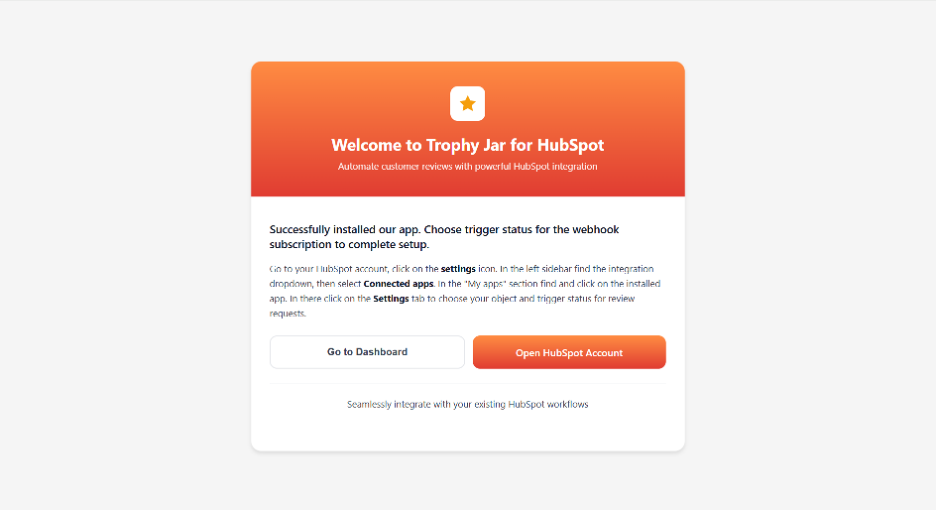
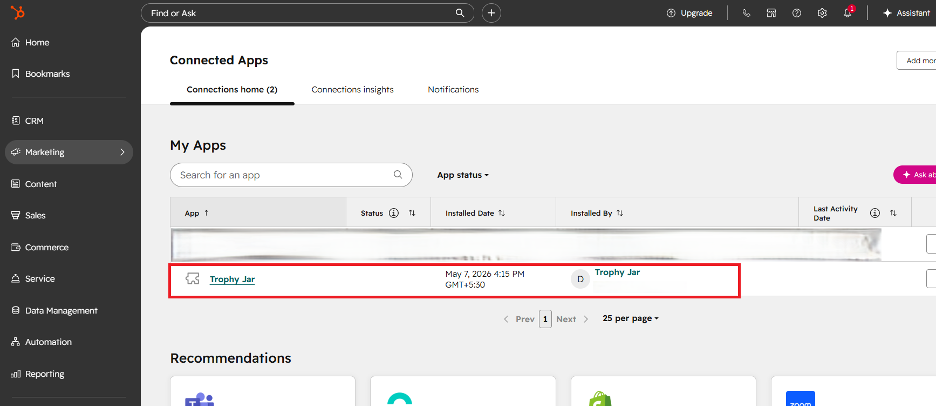
Go to the HubSpot app listing and install Trophy Jar into your portal. You’ll be asked to choose which HubSpot account to connect. Pick the right one, then work through the OAuth screen and approve the permissions. Once you do, the app shows up under Connected Apps and you’re ready to configure it.
Step 2: Configure the Integration
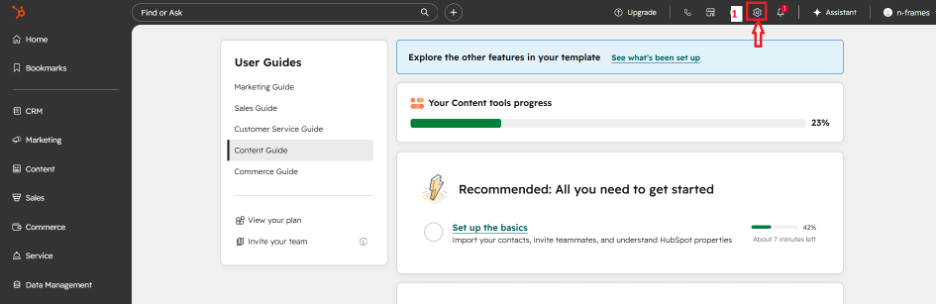
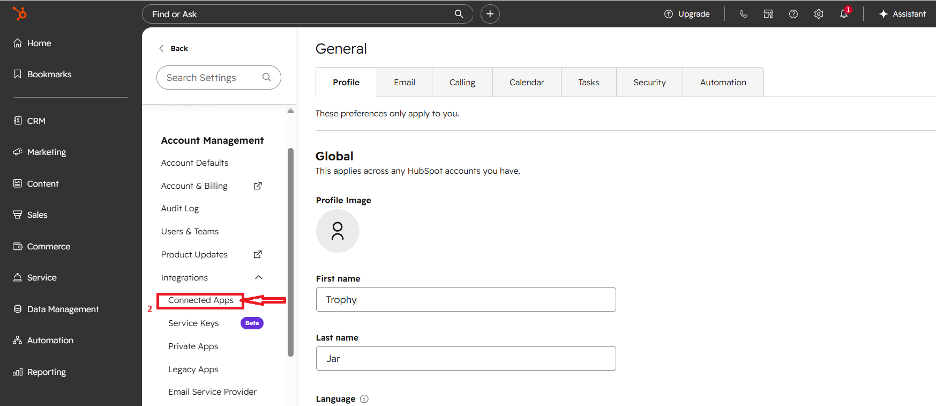
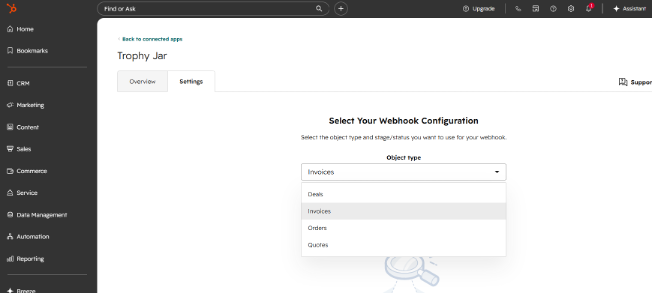
This is the important part. Go to Connected Apps, click the Trophy Jar app, and open the Settings tab. Here you’ll set which object type and which stage should trigger automation. Save it, and that’s it. HubSpot starts sending webhook events whenever a record matches, and Trophy Jar handles the rest.
Using it day-to-day
Nothing changes in your day-to-day HubSpot workflow. Move records through your pipeline as normal. When something hits a configured stage, the email goes out on its own.
How to Disconnect HubSpot
- Go to Trophy Jar and open the Settings menu. Then select Integrations.
- Locate the HubSpot app in the list of available integrations and click the Disconnect button. A confirmation popup will appear; once you confirm, the app will be disconnected.
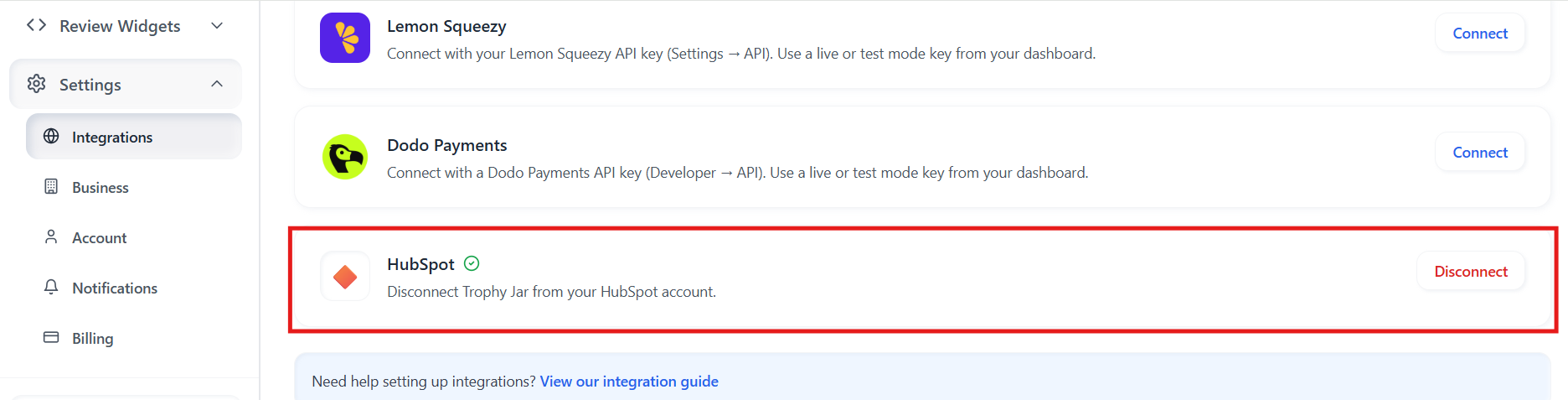
This immediately severs the connection. No more webhooks will be received, and no further automated emails related to HubSpot activity will be sent.
Your historical data stays intact. Trophy Jar just stops receiving new events from HubSpot going forward.
A few things worth knowing before you go live
Test with a low-stakes stage first. Push a record through manually and confirm the email is sent correctly before you configure your highest-volume stages. It takes two minutes and saves a lot of cleanup.
Also, double-check that you’re installing into the right HubSpot portal. If you manage multiple accounts, it’s easy to authorize the wrong one, and there’s no warning when that happens.
Once it’s running, it mostly disappears into the background, which is exactly the point.
Keep going: see get more reviews on autopilot.