Getting your xero invoice format right is one of those small things that quietly pays off week after week. Most people set it up once, in a rush, and never look at it again. Shame, really. The gap between a messy invoice and a clean one shows up directly in how fast you get paid. This is the calm, no-jargon version of doing it properly.


What goes into a solid xero invoice format
Before you touch a single setting, get clear on what a good xero invoice format actually contains. Xero’s own guidance is refreshingly plain here. Your business details. The client’s details. A unique invoice number. An issue date and a due date. Itemized lines, the tax breakdown, the total owed, and payment terms a human can read.
None of it is glamorous. But leave one field blank and you’ve invited a phone call, a delay, or a payment that sits in limbo for three weeks. A good layout strips the friction out of the gap between finishing the work and seeing the money land. So treat it less as paperwork and more as the last step of the sale.

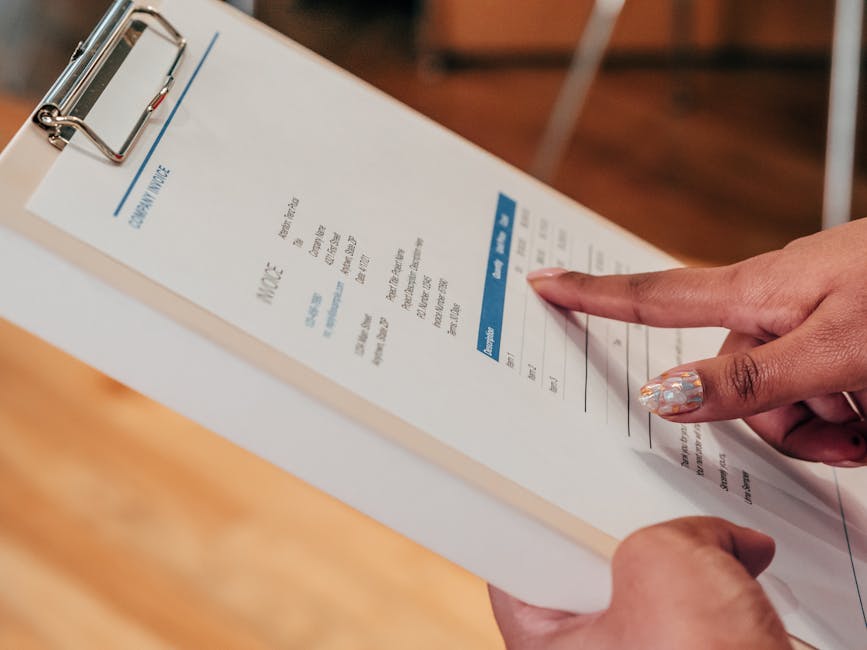
Standard vs advanced xero invoice templates
Xero hands you three kinds of templates to build a xero invoice format on. Standard is the default, and it’s the one Xero itself tells you to start with. You create and edit it right inside Xero, no other software needed. Fallback is the older legacy style, mostly hanging around for other document types. Advanced (Xero’s name for these is custom DOCX branding themes) lives outside Xero, edited in Microsoft Word and uploaded back in.
For most small businesses, the standard route is plenty. And here’s a detail people get wrong all the time: there’s no cap on how many standard branding themes you can create. Make a handful. One with net-30 terms for retainer clients, one for deposits, one for a specific service line. If you genuinely need pixel-level control over every margin and column, the advanced DOCX path is there, but you’re limited to 15 advanced templates per organization, and you’ll be wrestling Word merge fields the whole way.
Honest take? Start standard. Only jump to advanced when you hit a wall the built-in editor truly can’t get you past. Most people never hit that wall.
Set up your xero invoice format step by step
Ready to actually build the thing? Here’s the short version of setting up your xero invoice format from scratch.
- In Xero, open Settings, then Invoice settings, where your branding themes live.
- Open the standard theme or create a new one, and give it a clear name like “Retainer” or “Deposits”.
- Upload your logo. Let Xero pull a color palette from it, or set your own colors.
- Set your font, page margins, payment terms, and which columns appear on the page.
- Add your contact details and a payment advice section so clients know exactly how to pay.
- Send yourself a test invoice and check how it reads as a PDF and on a phone screen.
Do it once and every future invoice inherits the format on its own. That’s the quiet payoff of getting this right early. You set it up a single time. It works for you on every invoice after.
Branding themes and your xero invoice format
This is where your xero invoice format stops looking like a stripped-down spreadsheet and starts looking like your business. Upload your logo and Xero builds a color palette from it automatically. Keep those colors, or override them with your own. Two minutes of work, and it’s the single biggest jump in how your invoicing reads to a client.
A standard branding theme lets you control the logo, page margins, font, payment terms, the payment advice section, your contact details, and which columns and fields land on the page. Go the advanced DOCX route and the technical limits start to bite. Images have to be JPEG, non-interlaced PNG, or non-animated GIF, and the file has to stay under 2MB, or it flat-out won’t convert to a PDF. Nothing kills momentum like a template that refuses to render at 4:55 on a Friday.
The xero invoice format details that get you paid faster
A clean layout is nice. Getting paid is the actual point. A few choices here move that needle way more than fonts and colors ever will.
Put the due date up top, not buried under the line items. Write payment terms in plain language, because “due within 14 days” beats “net 14” for anyone who doesn’t live in accounting all day. Switch on online payment options so a client can pay the second they open the email, straight from a card or their bank. If you take card payments through a tool like Stripe, wiring it into your invoicing means the money and the reconciliation both happen without you chasing a soul.
And keep your invoice numbers sequential. Sounds trivial. But gaps and duplicates are exactly what turn a five-minute reconciliation into an afternoon of detective work.
Common xero invoice format mistakes to skip
Most invoicing mistakes are small, avoidable, and quietly expensive once they stack up. A few worth cutting from your process:
- Sending before the invoice date is set. Xero won’t print or email an invoice without one, so this stalls you every single time.
- A logo that’s too heavy or the wrong file type, so the PDF never generates.
- Vague payment terms that leave the client guessing what “soon” is supposed to mean.
- No online payment link, which quietly tacks days onto every invoice.
- Reusing one generic template for wildly different jobs instead of building two or three focused ones.
Fix those and your invoicing runs quietly in the background, which is exactly where invoicing belongs.
Reviews increasingly shape which businesses buyers and search engines trust. For context, see Google’s guidelines on reviews.
The invoice is paid. Now catch the review (and any disputes).
Here’s the moment most businesses fumble. A client just paid a Xero invoice. They’re happy, or at least satisfied enough to part with money. That is the single best window to ask for a review. It’s also the best window to catch a problem before it quietly hardens into a chargeback or an angry email two weeks down the line.
A review request sent right after payment pulls double duty. Delighted clients leave you a public five-star review. Quietly unhappy ones tell you privately, so you can fix the thing while it’s still cheap to fix, long before it becomes a dispute over that invoice. Getting your xero invoice format dialed in is what gets you paid. A review request right behind it is what protects the relationship.
That’s the part Trophy Jar runs for you. The moment an invoice is marked paid, it can fire off a review request on its own, so nothing hinges on you remembering. Same idea behind automated review collection: the work is already done, so let the follow-up handle itself.
Frequently Asked Questions
What is the best xero invoice format for a small business?
For most small businesses, a standard Xero branding theme is the best place to start. You build and edit it right inside Xero, add your logo and payment terms, and there’s no cap on how many standard versions you keep for different situations. Only move to an advanced DOCX template if you need control the standard editor can’t hand you.
Can I have more than one xero invoice format?
Yes. Xero lets you create as many standard invoice templates as you want, so you can keep separate layouts for retainers, deposits, and one-off jobs. Advanced DOCX branding themes are capped at 15 per organization if you need heavier customization.
Why won’t my Xero invoice generate a PDF?
Usually it’s the invoice date (Xero won’t print or email an invoice without one) or an image problem. For advanced DOCX templates, images must be JPEG, non-interlaced PNG, or non-animated GIF, and the file has to stay under 2MB, or it won’t convert to a PDF.
Related reading
Keep going: see automated review collection, Xero review automation.
Your Xero invoices are already doing the work. Let them collect reviews too.
The moment a Xero invoice is marked paid, Trophy Jar can send a review request automatically, no extra step for you. Connect it once and watch the five-star reviews stack up while you get on with the job. Start for $9/month.