Field service businesses live on reputation. A good review after a completed job is worth more than most marketing. But asking for it? That falls through the cracks constantly. The crew is already on the next job, the invoice goes out, and nobody remembers to follow up.
Trophy Jar connects to Jobber and handles that follow-up automatically. Here’s how to get it running.
Step 1: Connect from the Jobber App Marketplace
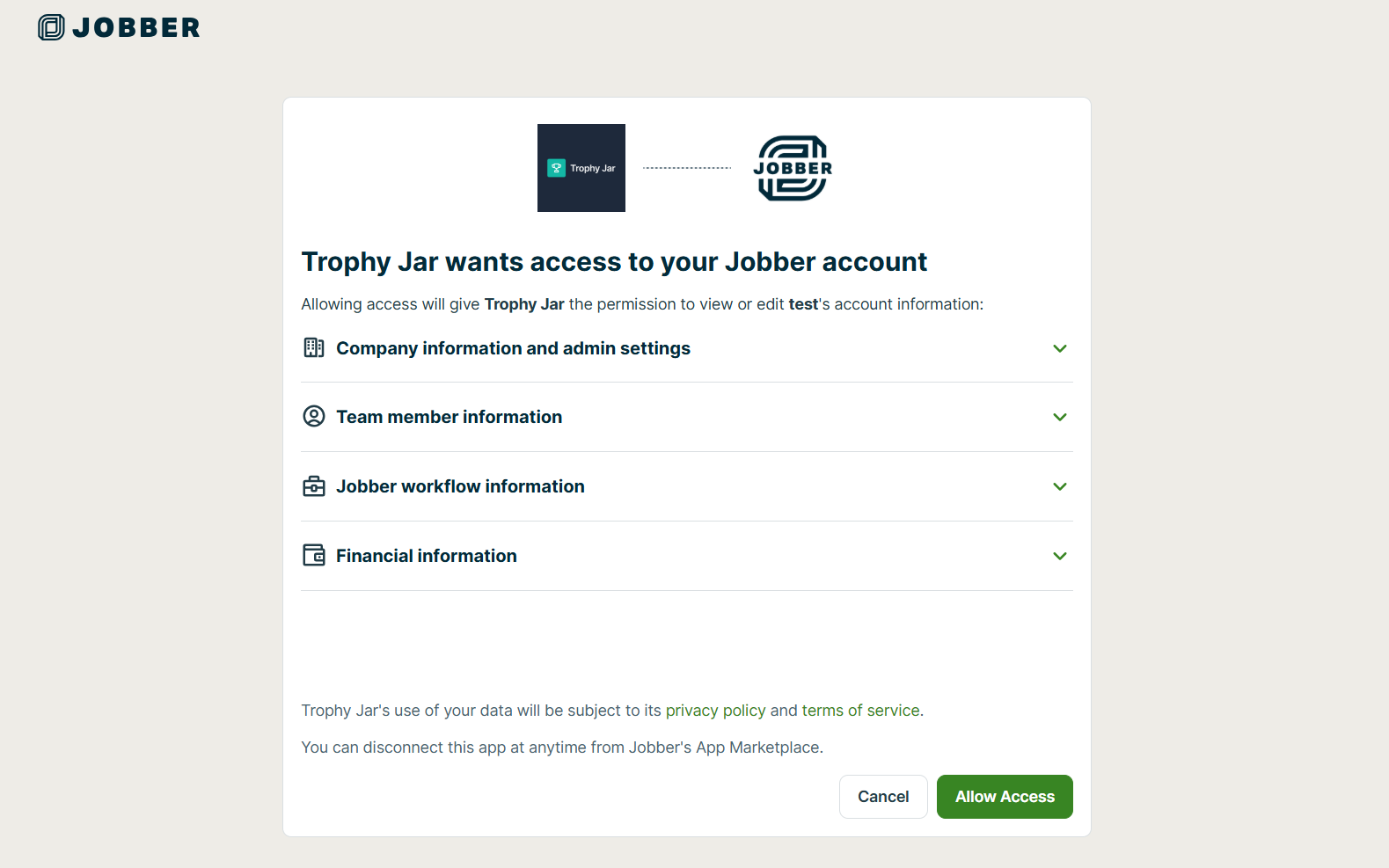
Open the Trophy Jar listing in the Jobber App Marketplace and click Connect. Jobber will ask you to authorize the app. Approve it and the connection is made.
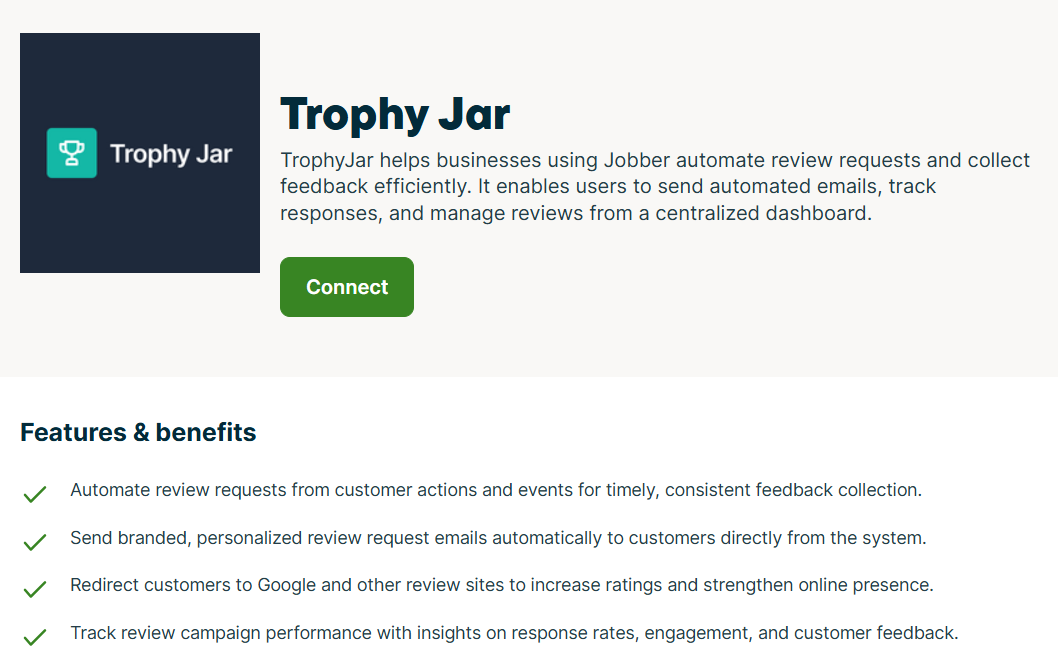

You don’t need to create a Trophy Jar account first. The whole thing starts from the Marketplace.
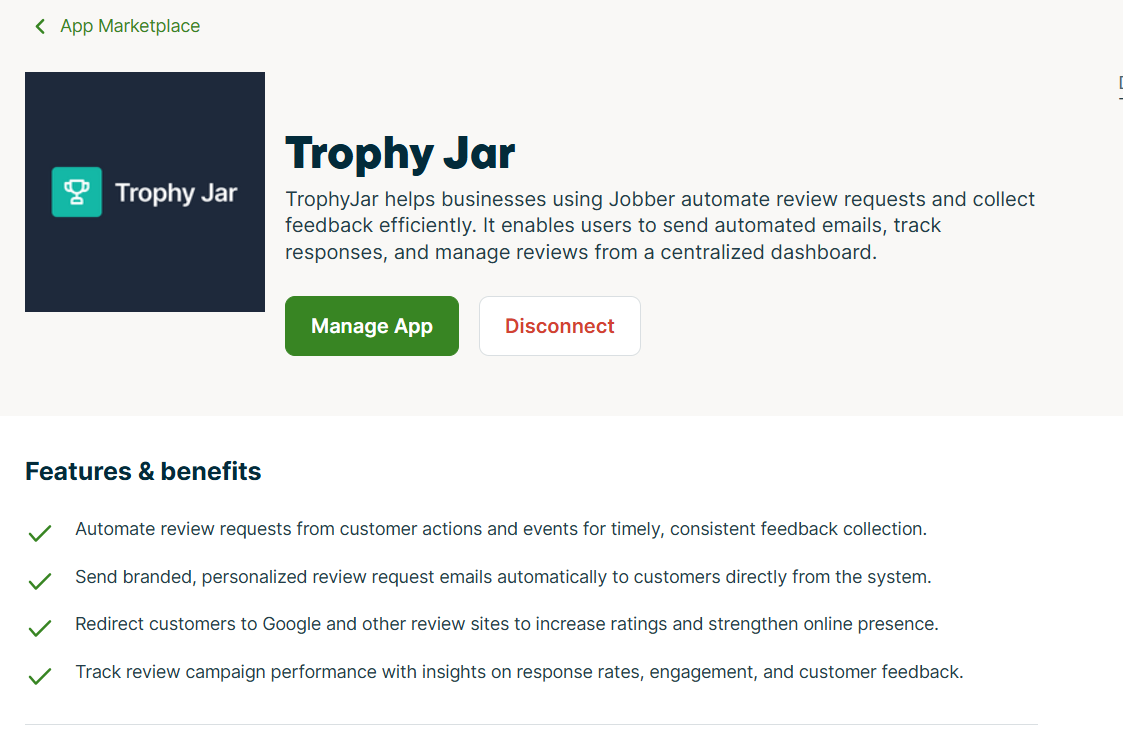

What happens next depends on whether you’ve used Trophy Jar before:
- New to Trophy Jar? A new account gets created using the email of whoever’s logged into Jobber during installation.
- Already have a Trophy Jar account? It links to your existing account. Nothing gets duplicated.
Step 2: Set your trigger
After connecting, you’ll land on the Trophy Jar for Jobber setup page. This is where you decide what should kick off a review request.
Three quick choices:
- Object type: Job or Invoice
- Trigger status: Job completed, invoice paid, whatever fits your workflow
- Save.
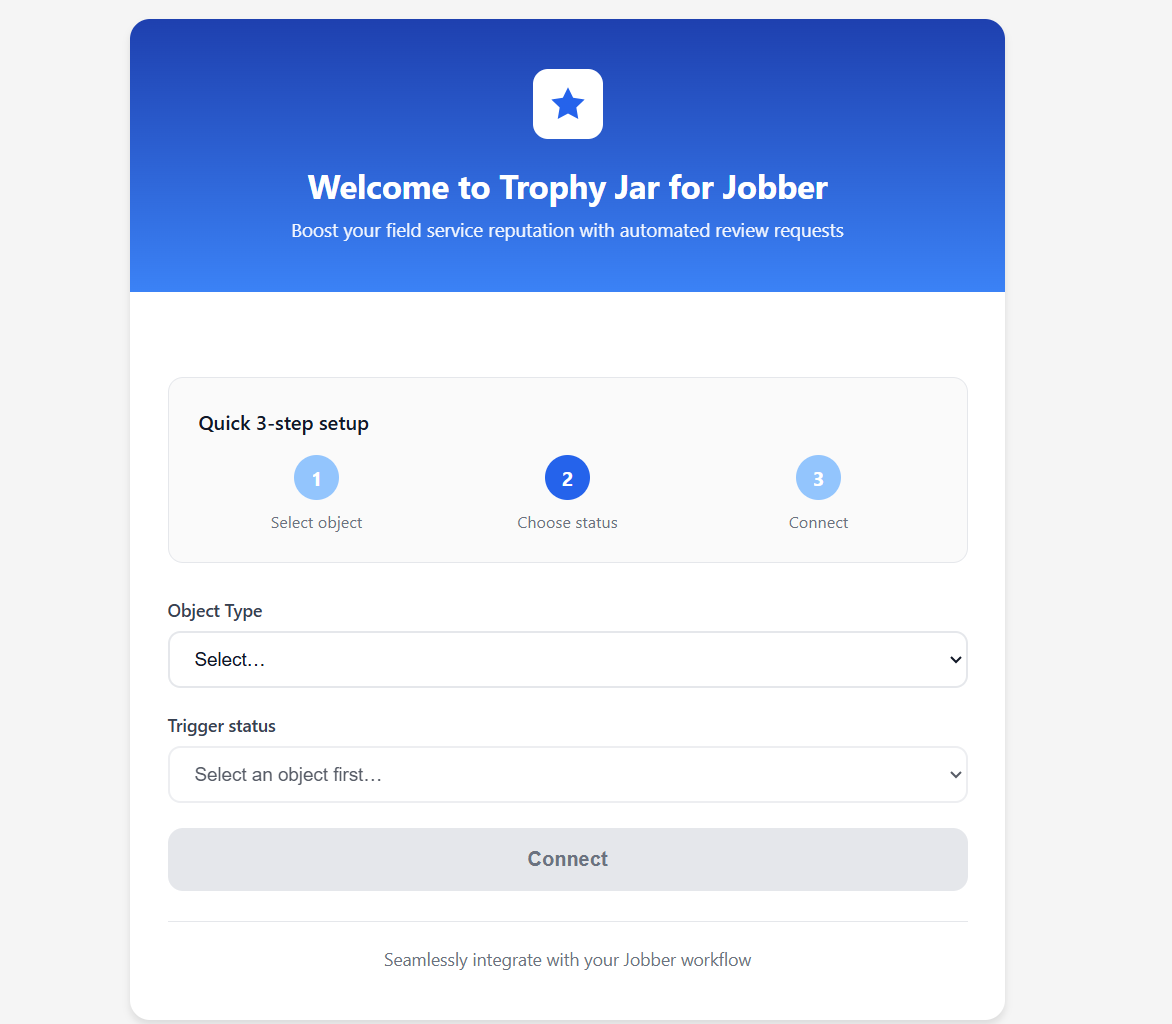

Pick the moment that makes the most sense for your business. A completed job is the obvious one for most field service companies where the work is done and the customer is satisfied. That’s your window.
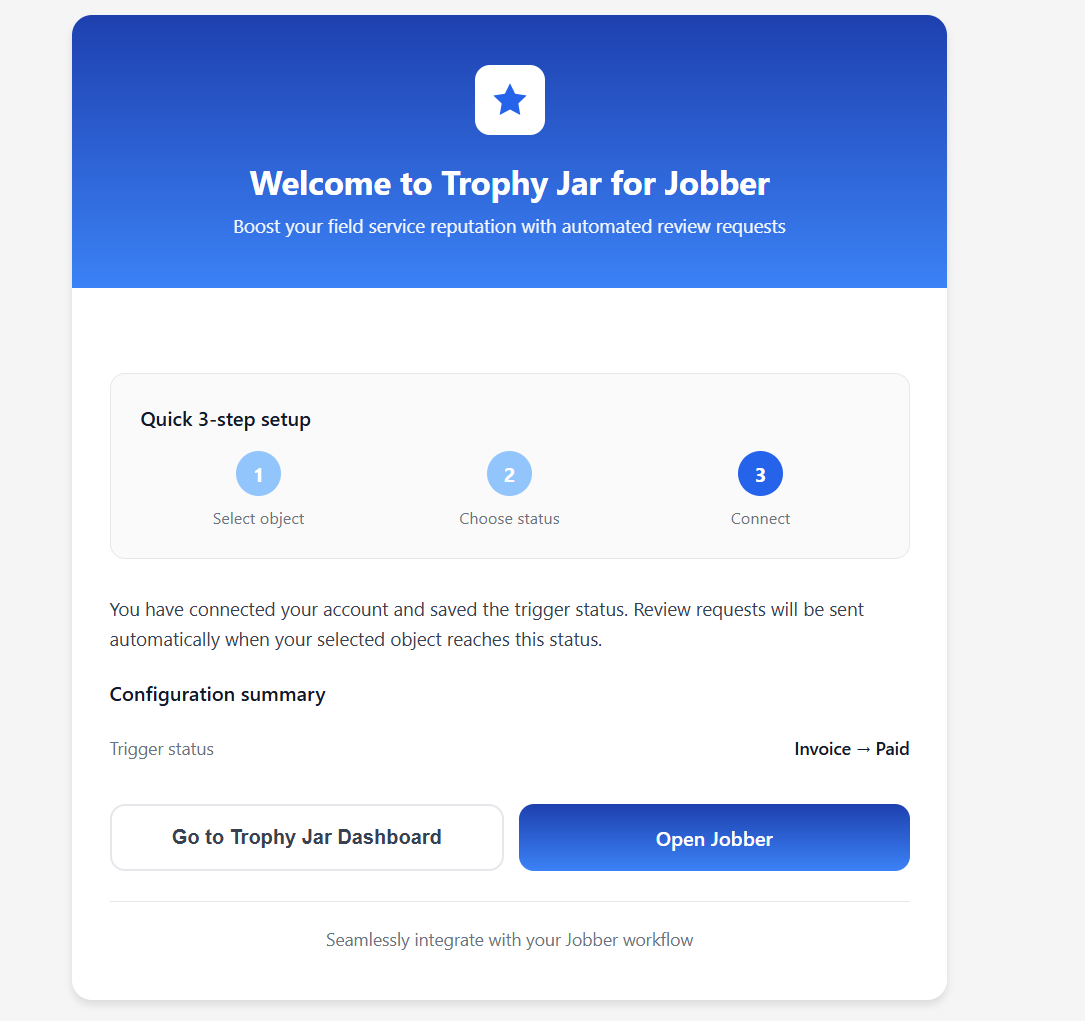

Step 3: Sign into Trophy Jar
Once your configuration is saved, sign into Trophy Jar using the same email as the Jobber user who installed the app. Your connection and trigger settings are already there.

From the dashboard you can manage your review campaigns, check activity, and adjust anything that needs tweaking.
Disconnecting
If you need to remove the integration, go to the Jobber App Marketplace, open the Trophy Jar listing, and click Disconnect. You can also do it from inside Trophy Jar under Settings → Integrations.
Either way, here’s what actually happens when you disconnect:
- Trophy Jar stops receiving new events from Jobber immediately
- Your Trophy Jar account stays intact, only the Jobber link is removed
- Everything already collected stays in your history
Before you go live
Complete a test job or invoice in Jobber and push it to your configured trigger status. Confirm the review request email lands correctly. Five minutes of testing now saves a lot of explaining later if something’s off.
Keep going: see get more reviews on autopilot.