Customer reviews are one of the easiest ways to build trust and win new business. But asking every customer for feedback manually takes time, and it’s easy to forget after a project is finished.
By connecting Monday.com with Trophy Jar, you can automatically send review requests whenever a project reaches a specific stage in your workflow. Whether you manage clients, service requests, or projects in Monday.com, this integration helps you collect more reviews without adding extra work to your day.
In this guide, we’ll show you how to connect Monday.com with Trophy Jar and start automating your review requests.
Why Connect Monday.com with Trophy Jar?
Monday.com helps teams organize projects and track work from start to finish. Trophy Jar extends that workflow by automatically turning completed projects into opportunities to collect customer reviews.
With this integration, you can:
- Automatically create review requests when project statuses change
- Send review requests at the perfect time
- Eliminate manual follow-ups
- Collect more customer testimonials
- Build social proof that helps attract new customers
Instead of remembering to ask every customer for a review, Trophy Jar does it for you.
Step 1: Install the Trophy Jar App
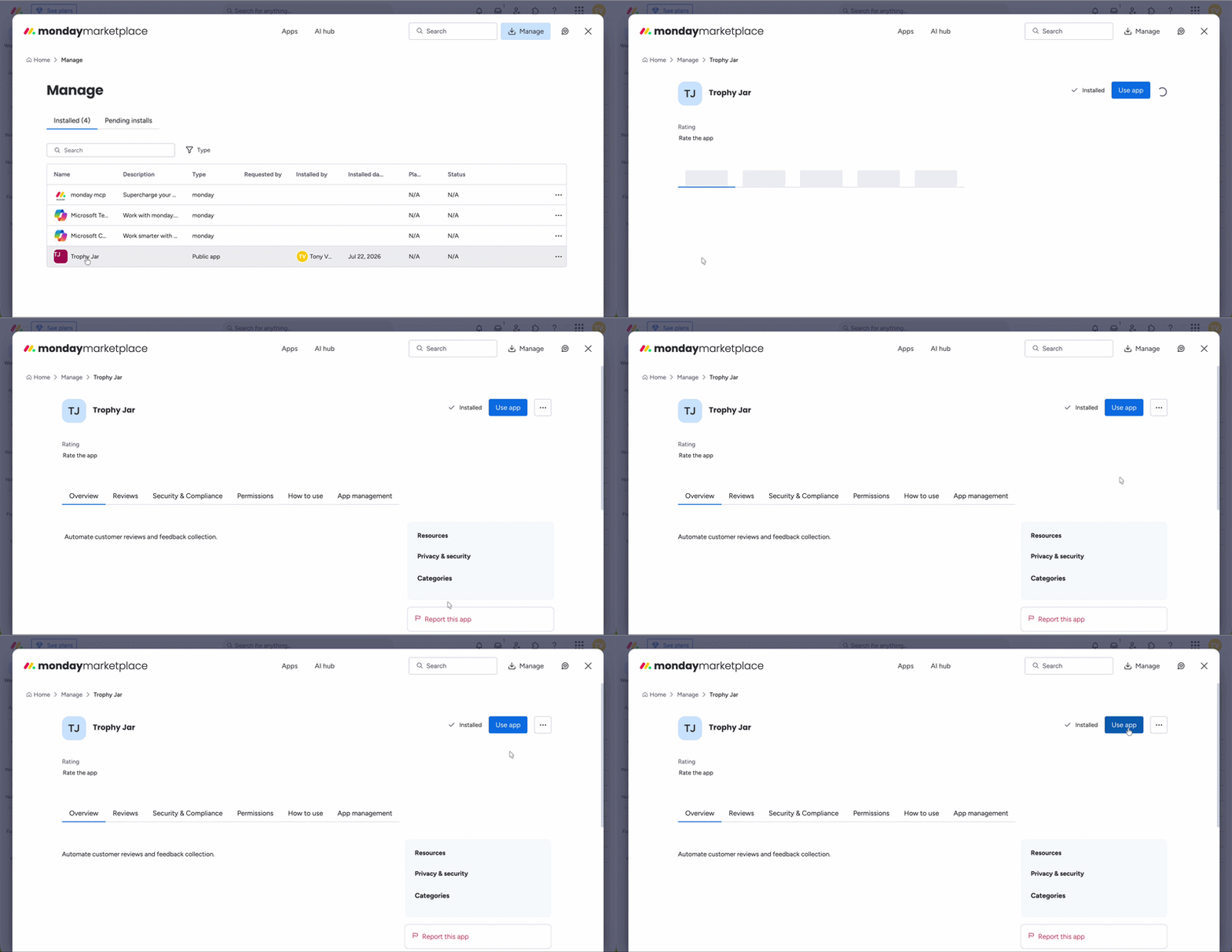
Log in to your Monday.com account. Click your profile picture and open the App Marketplace. Select Manage, where you’ll find your installed apps.
Locate Trophy Jar and click Use App. You’ll be redirected to a page where you can choose which boards Trophy Jar can access. Select the boards you want to use and click Add App.

Step 2: Connect Your Monday.com Account
After installing the app, Monday.com redirects you back to your workspace. A dialog box will appear asking you to connect Trophy Jar. Click Connect, then Authorize.
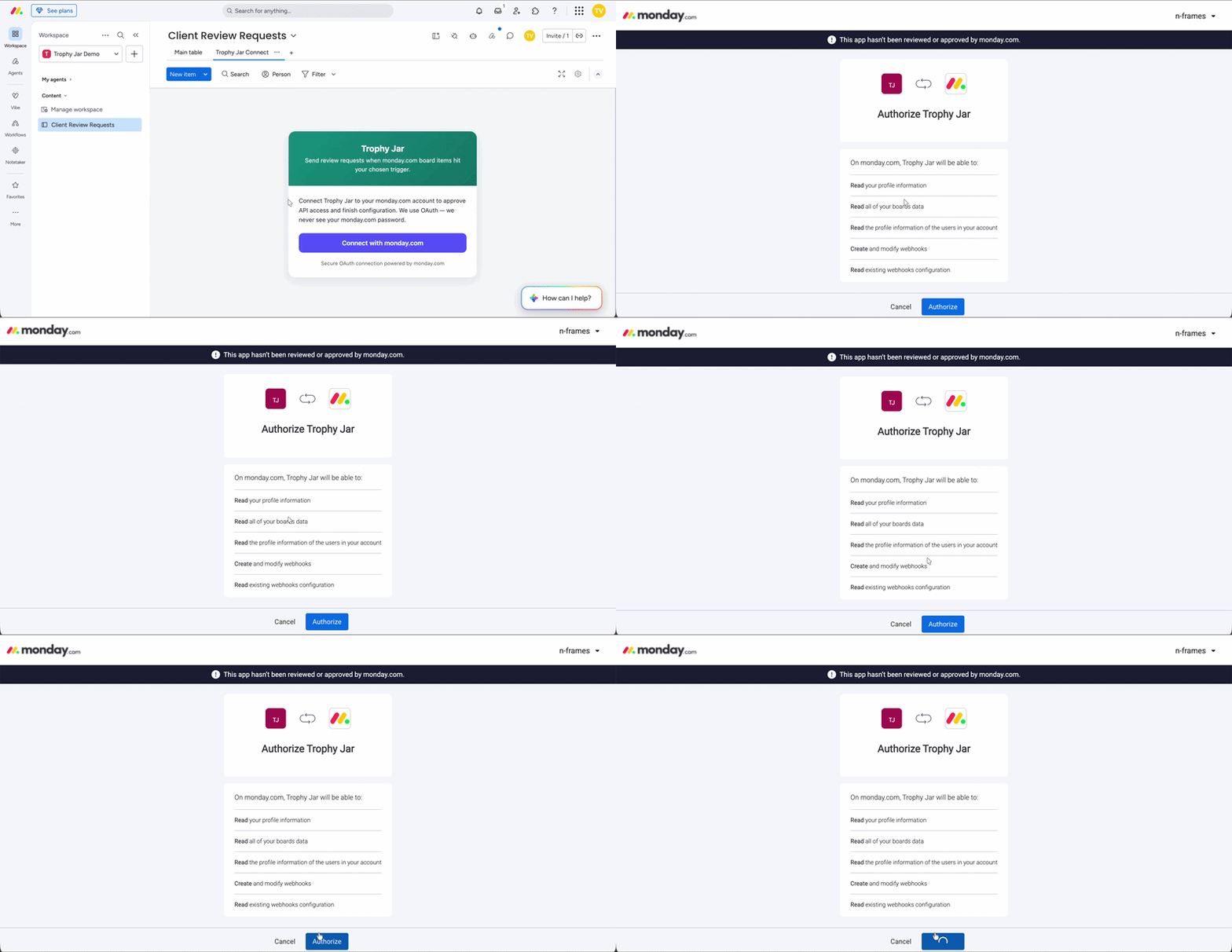
Once approved, Trophy Jar can begin monitoring your selected boards.
Step 3: Configure Your Automation
Inside Trophy Jar, you’ll configure when review requests should be created. Choose the Board to monitor, the Group to watch, and the Status that should trigger review requests. For example, many businesses send review requests when a project reaches Done, Completed, or Delivered. Review your settings, click Continue, then click Connect.
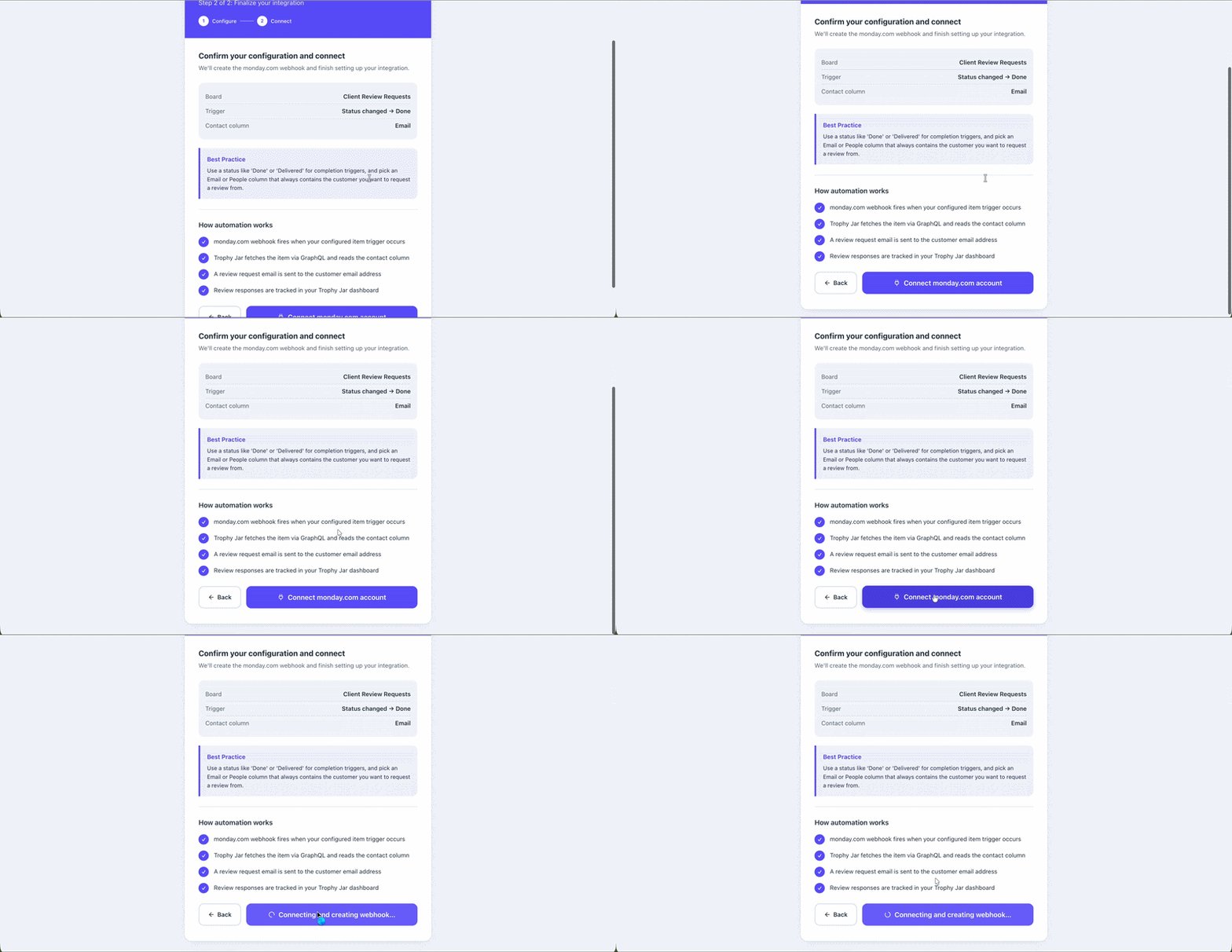
Your automation is now active.
Step 4: Test the Integration
To verify everything is working correctly, return to Monday.com. Update one of your items so its status matches the trigger you selected. Once the status changes, Trophy Jar automatically detects the update and creates a review request.
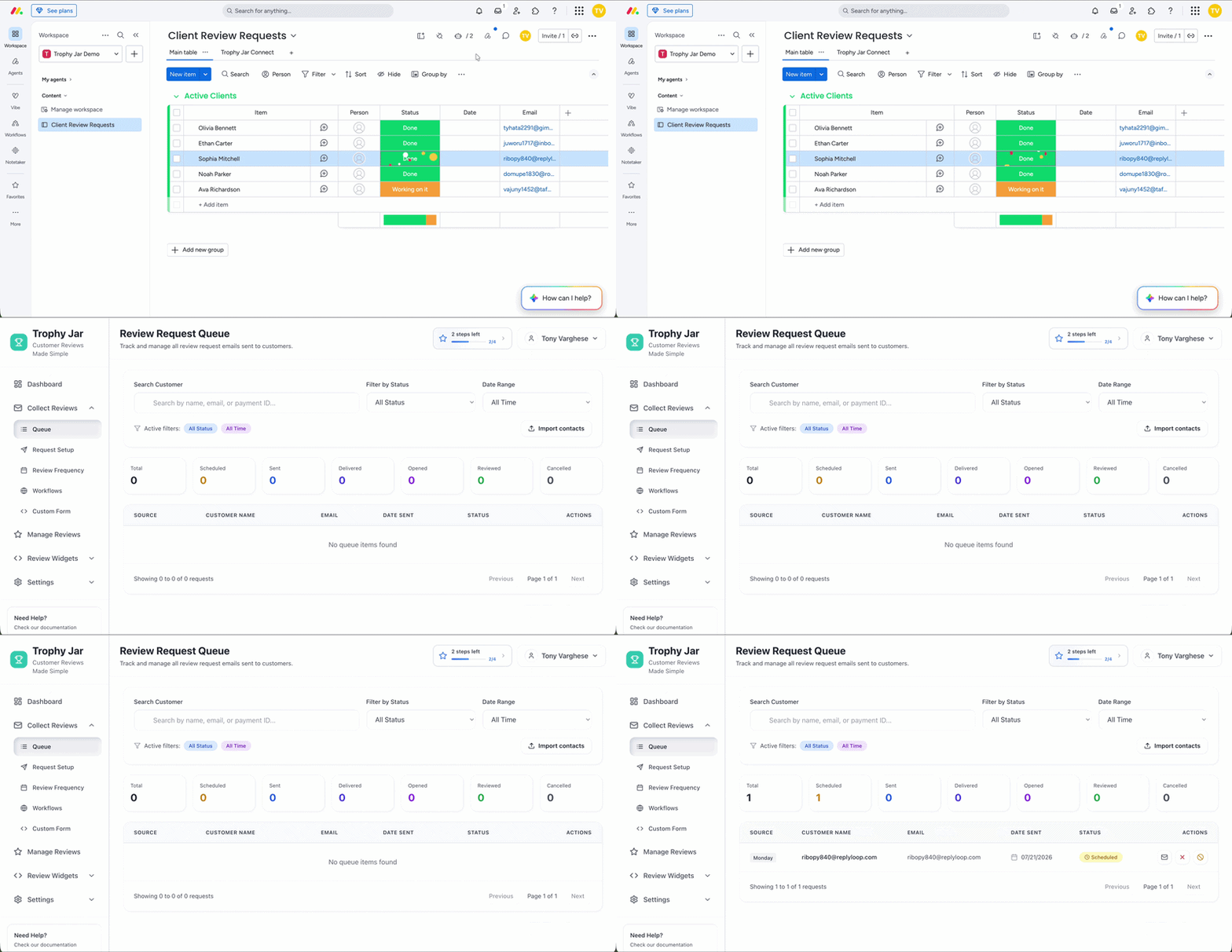
No manual action is required.
Step 5: Send the Review Request
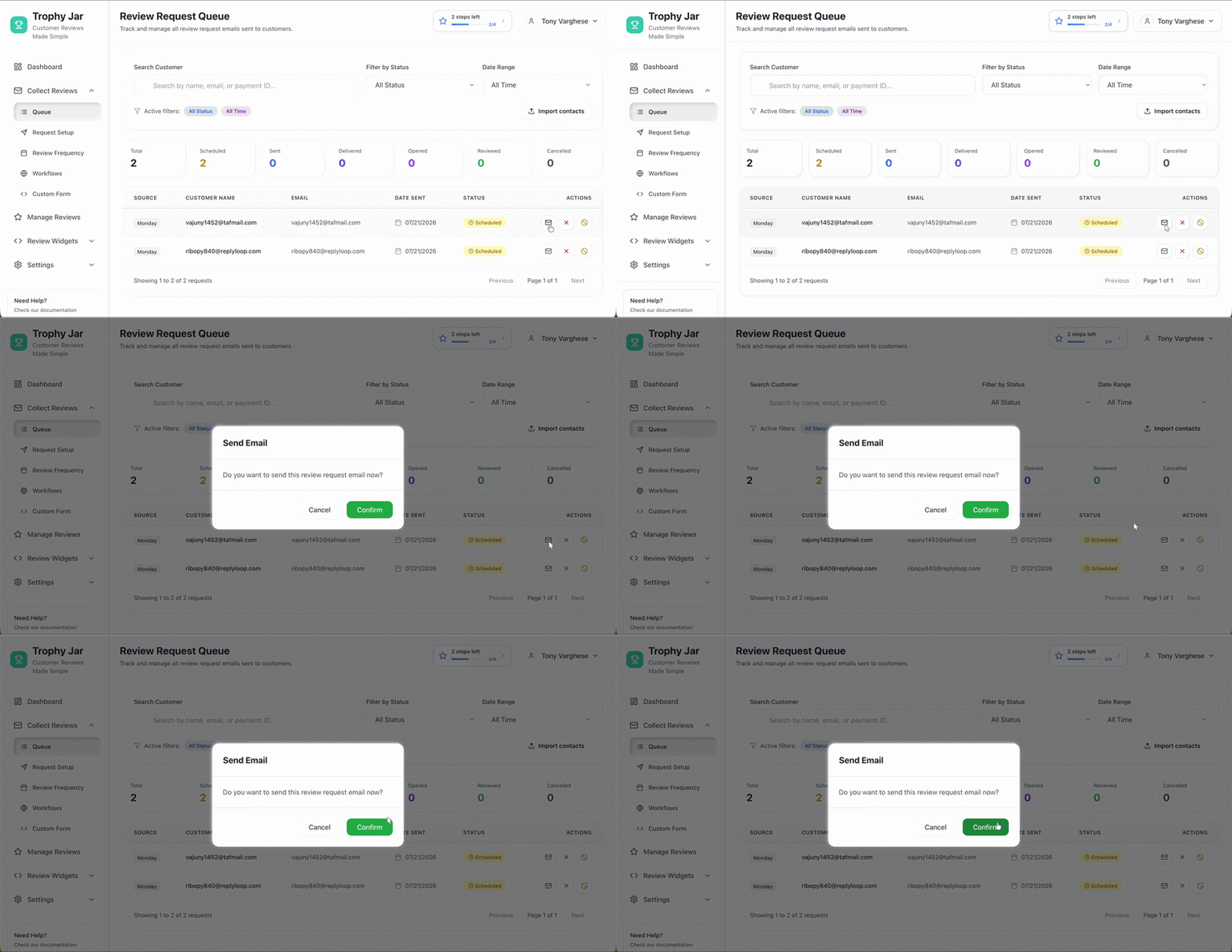
Open Trophy Jar and navigate to Collect Reviews → Queue. You’ll see the customer waiting in your review queue. Click the email icon to send the review request.
Once the customer submits their review, Trophy Jar automatically updates the status to Reviewed. From there, you can manage reviews inside Trophy Jar or publish them on your website using review widgets.
Why Automate Review Requests?
The best time to ask for a review is immediately after you’ve successfully completed work for a customer.
Waiting even a few days often results in fewer responses.
By connecting Monday.com with Trophy Jar, every completed project becomes an opportunity to collect valuable customer feedback while the experience is still fresh.
Automation also helps your team stay consistent. No one has to remember to send review requests manually, and every customer receives the same experience.
Start Collecting More Reviews with Monday.com
If your business already runs on Monday.com, adding Trophy Jar takes only a few minutes and can dramatically improve how you collect customer reviews.
Simply connect your boards, choose the status that should trigger review requests, and let Trophy Jar handle the rest.
The result is a steady stream of customer reviews, stronger social proof, and more trust with future customers—all without changing your existing workflow.